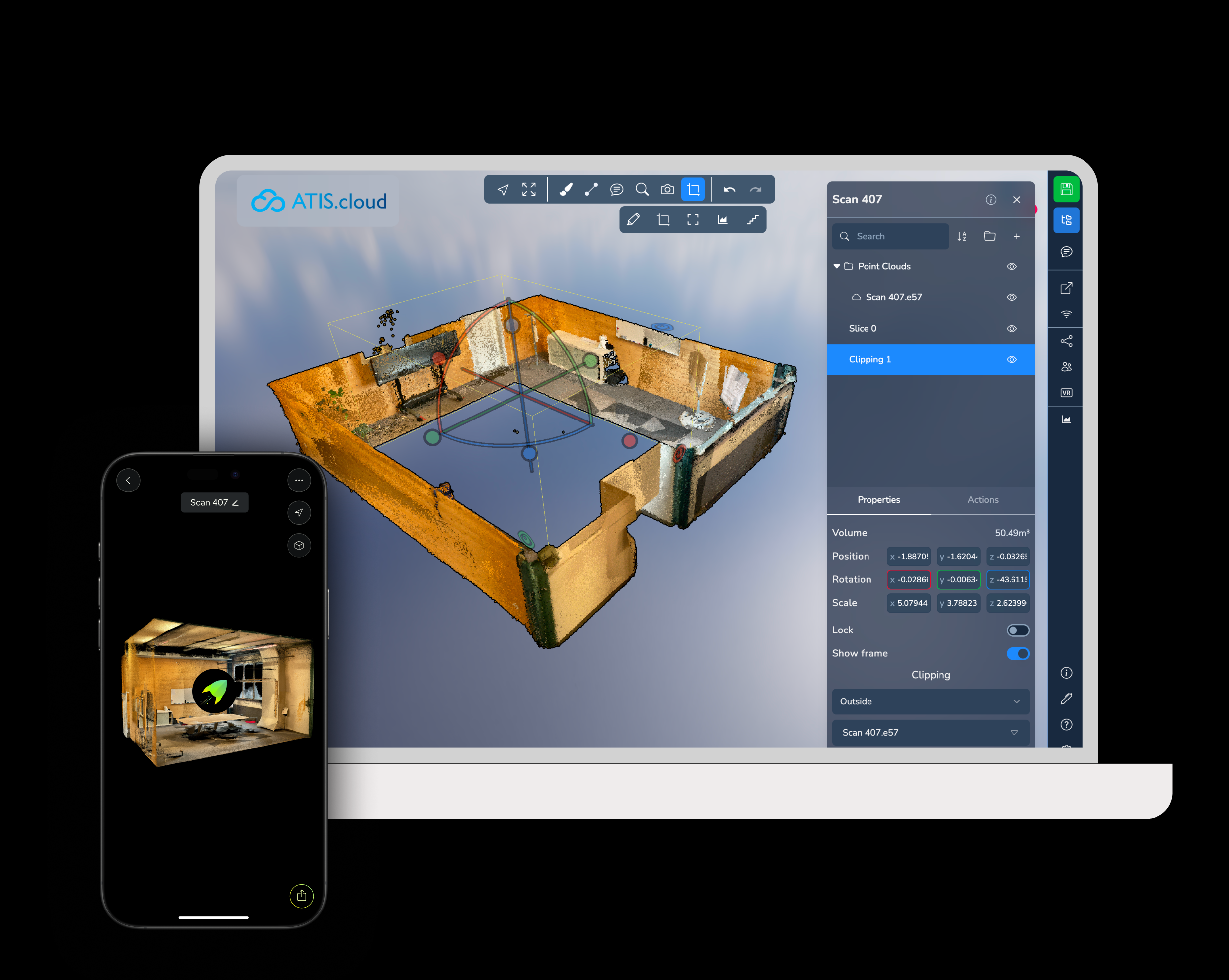
How to get started
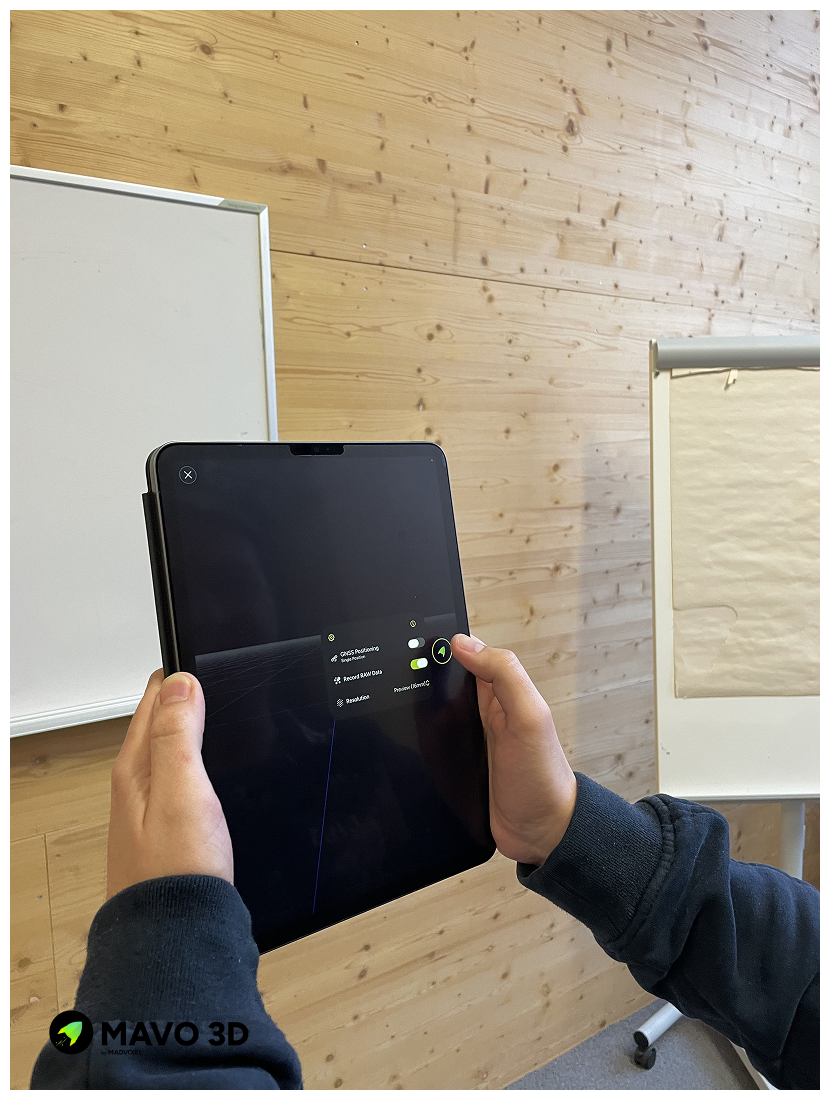
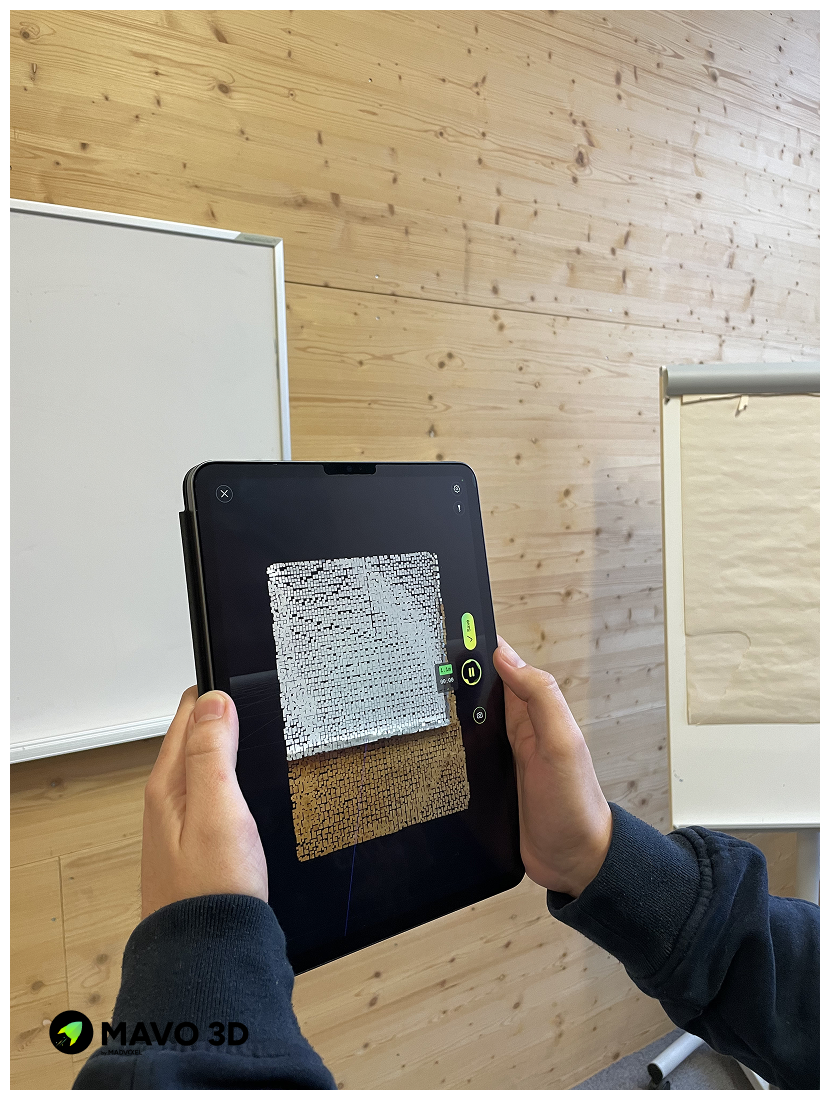
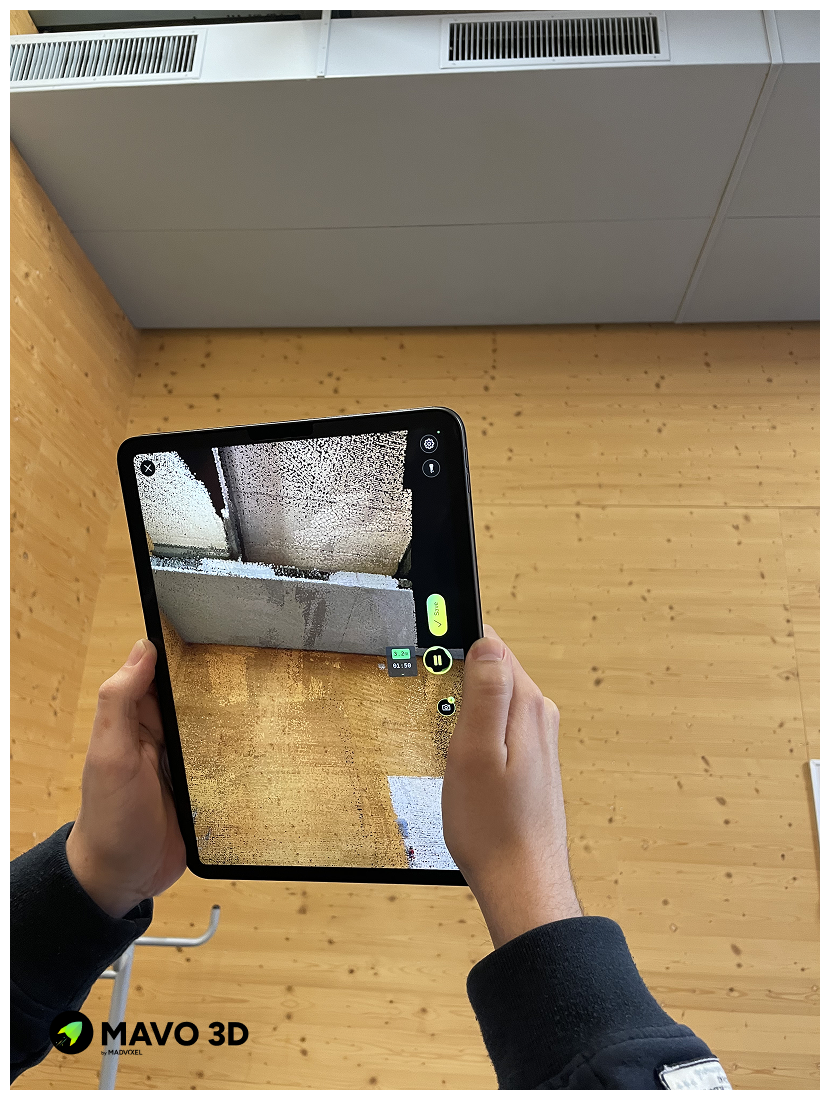
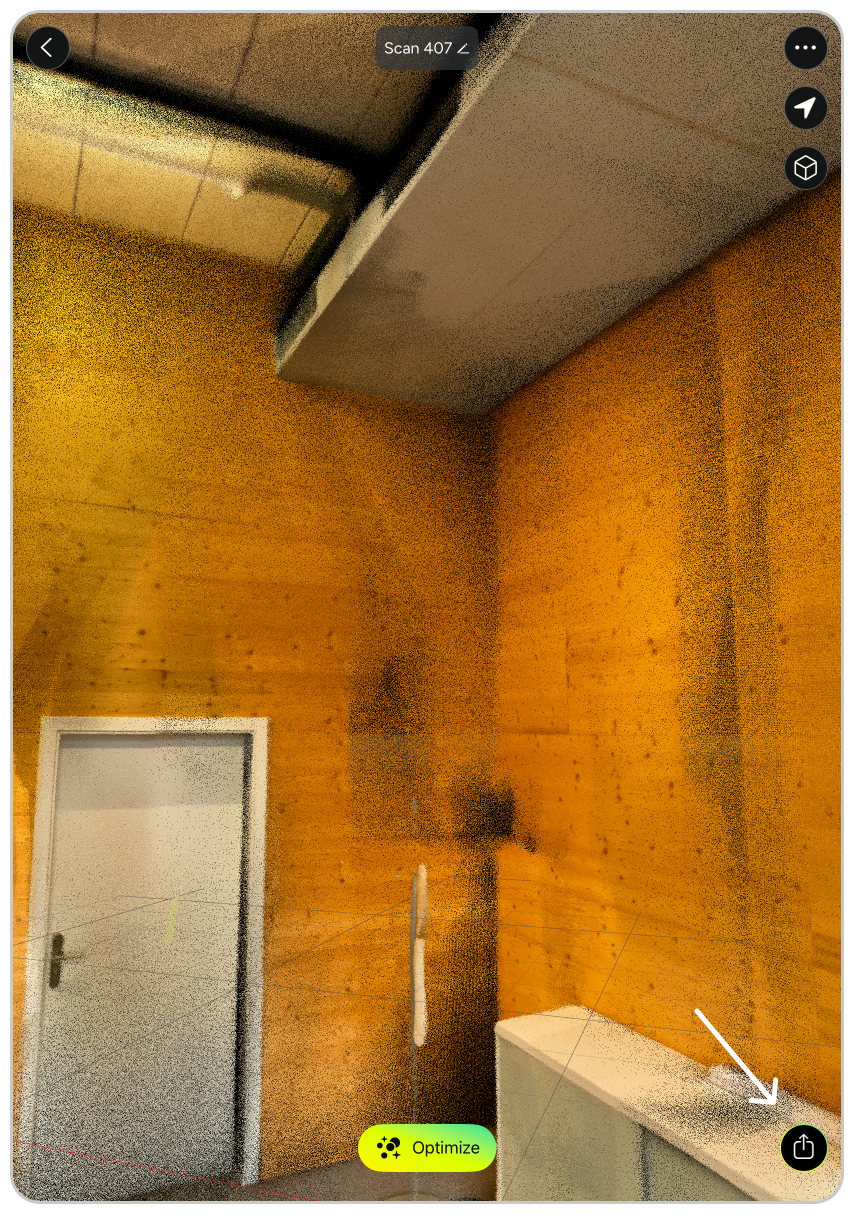
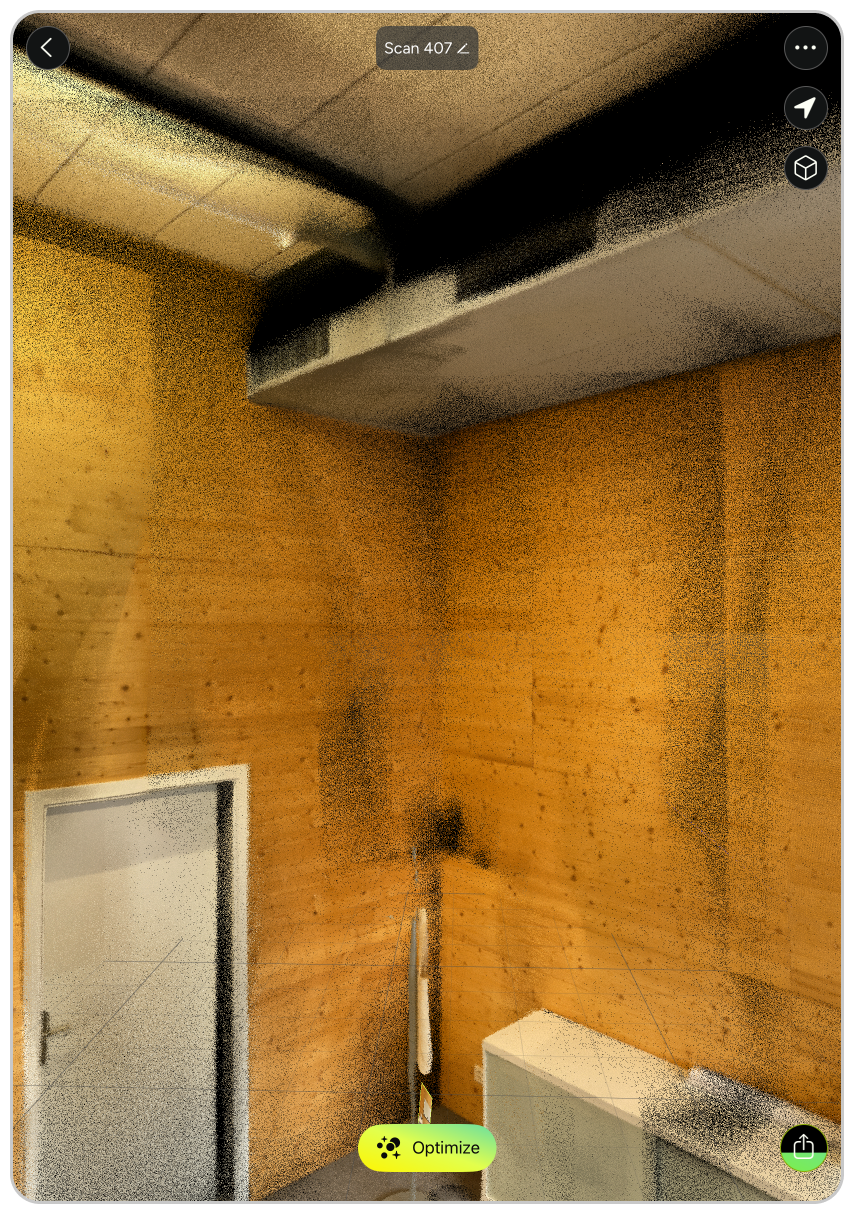
Capture the location with MAVO 3D check out some 3D scanning best practices and save your scan.
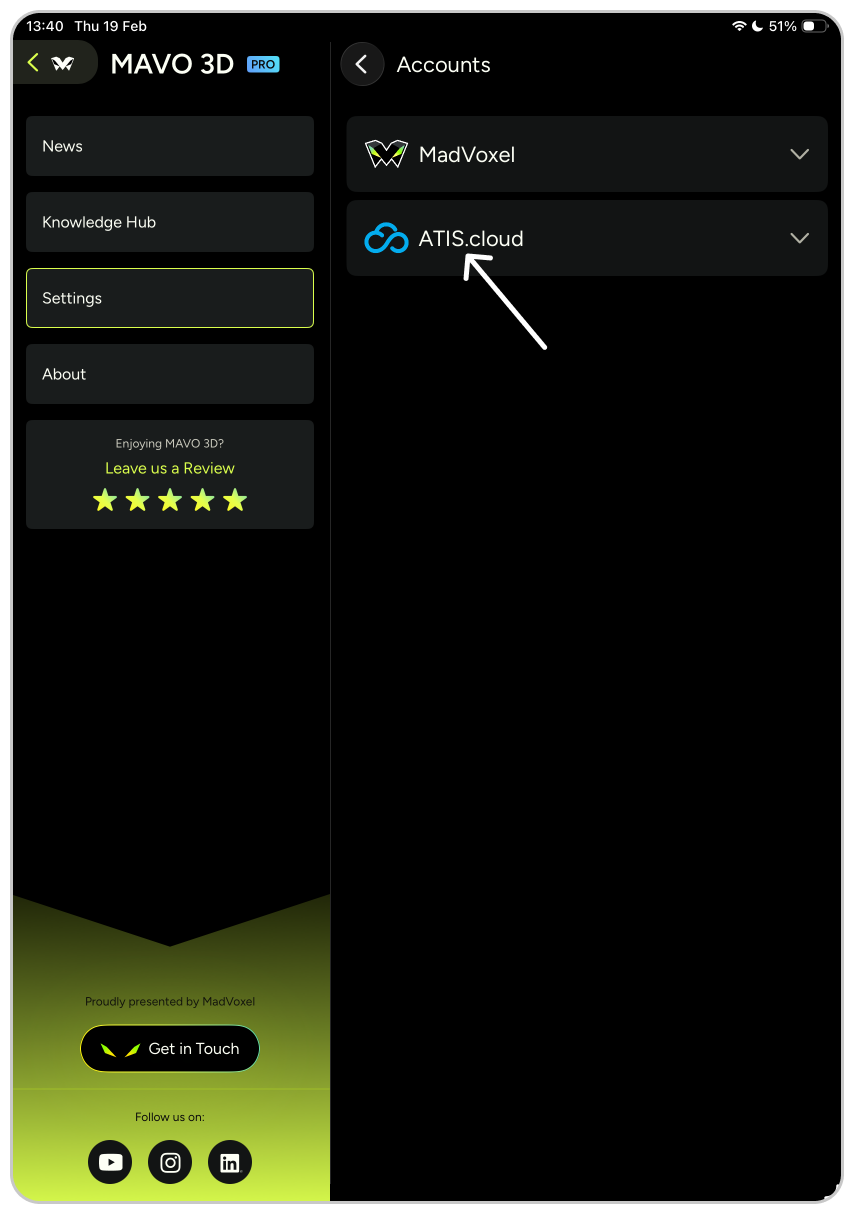
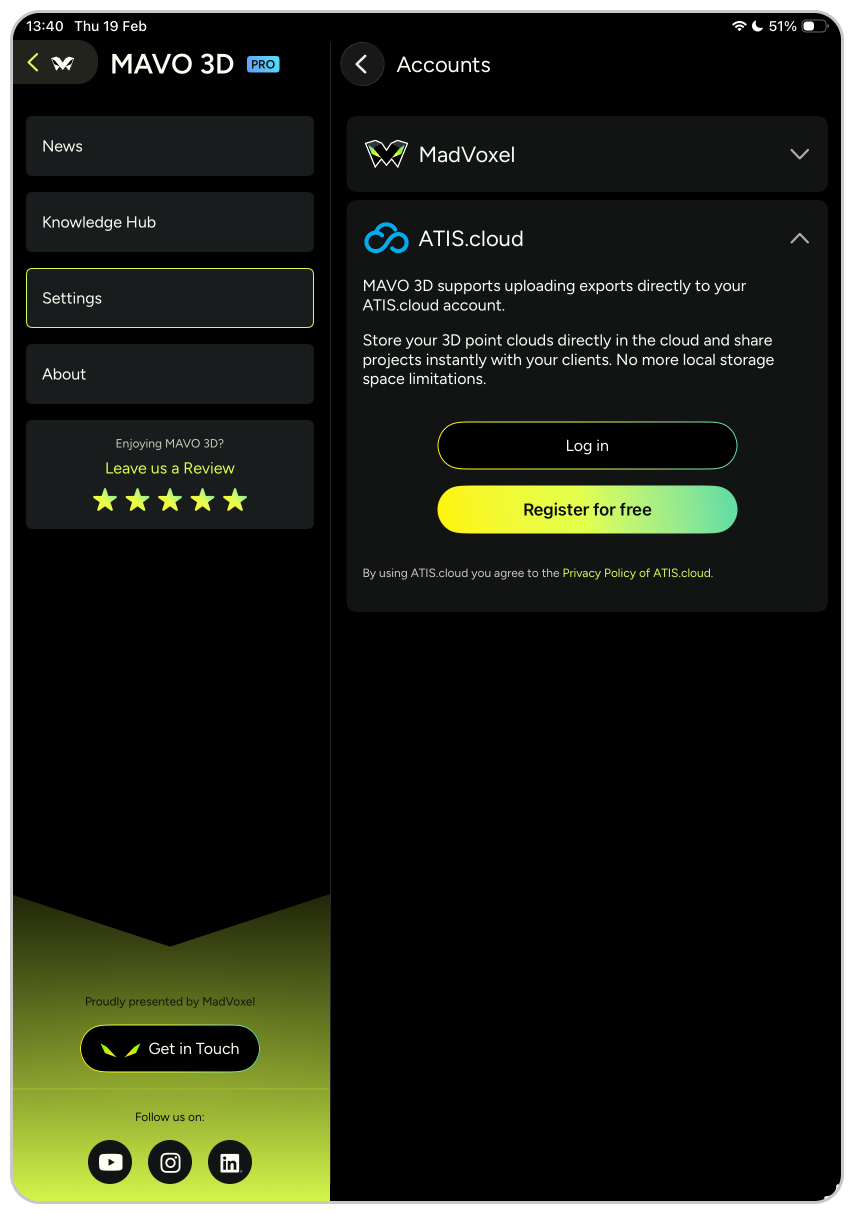
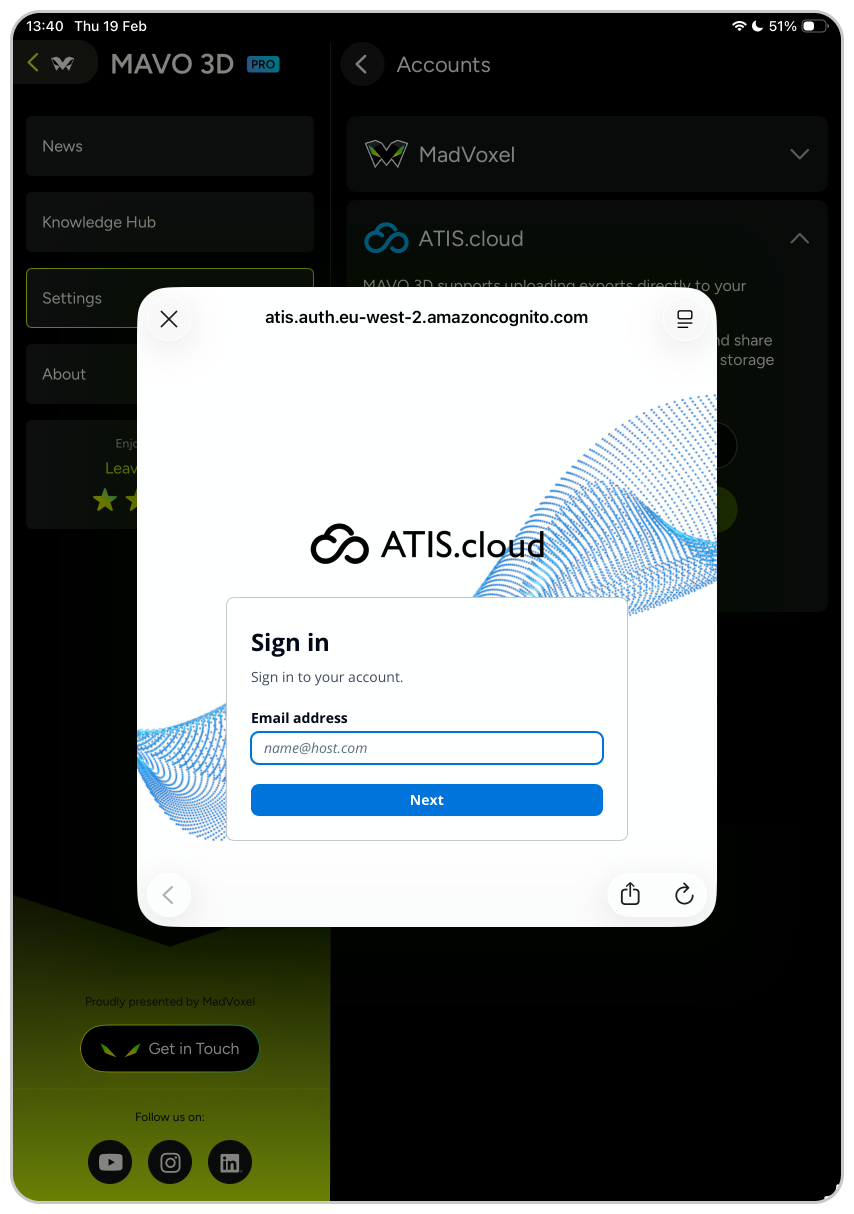
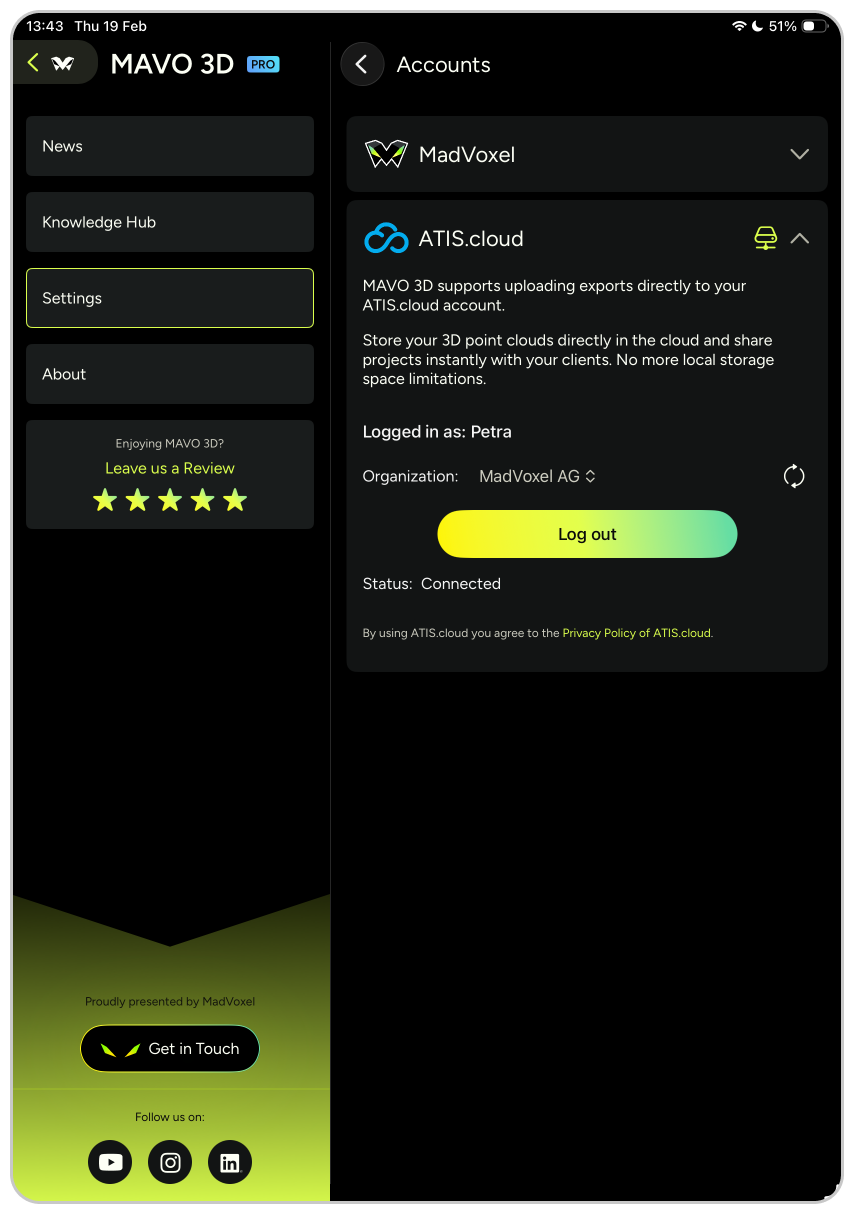
In MAVO 3D settings, go to “Accounts and Clouds”, log in to ATIS.cloud with your email, and follow the instructions. New to ATIS.cloud? Create a free account.
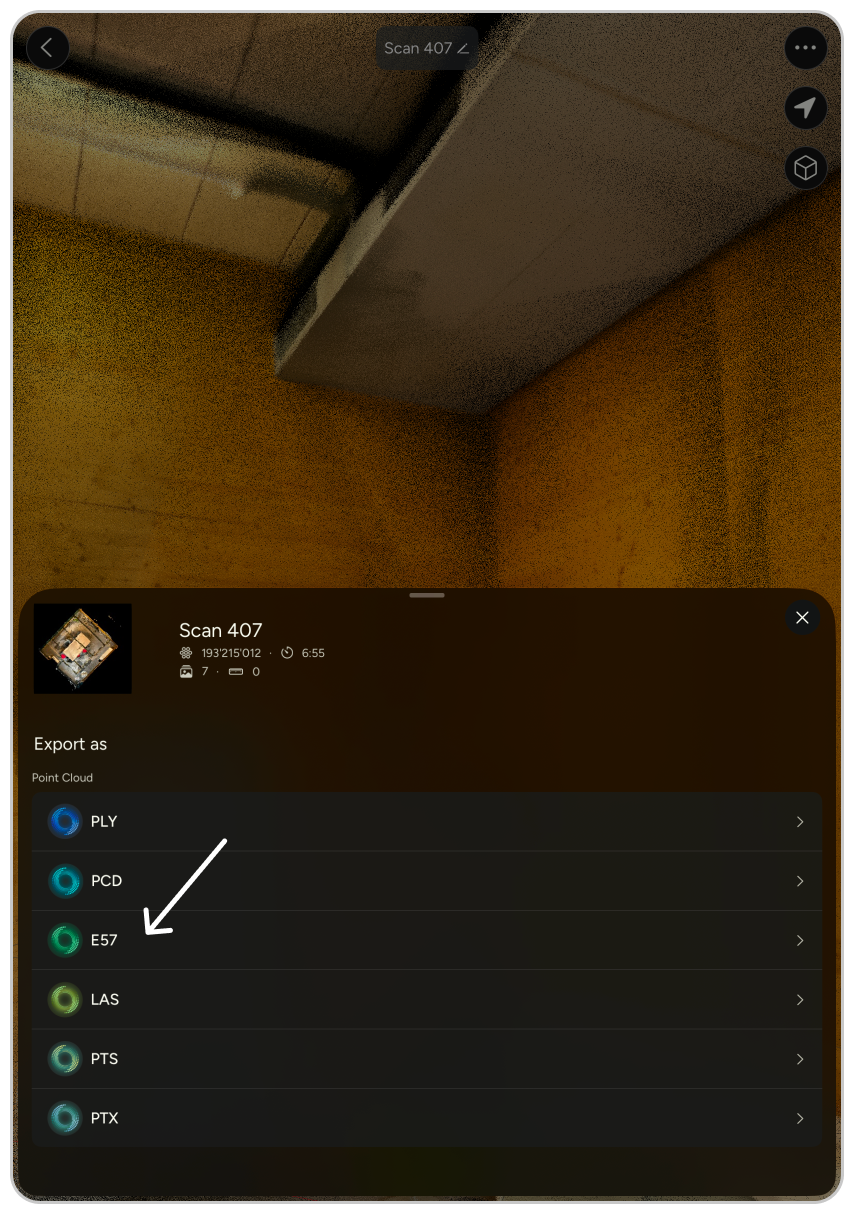
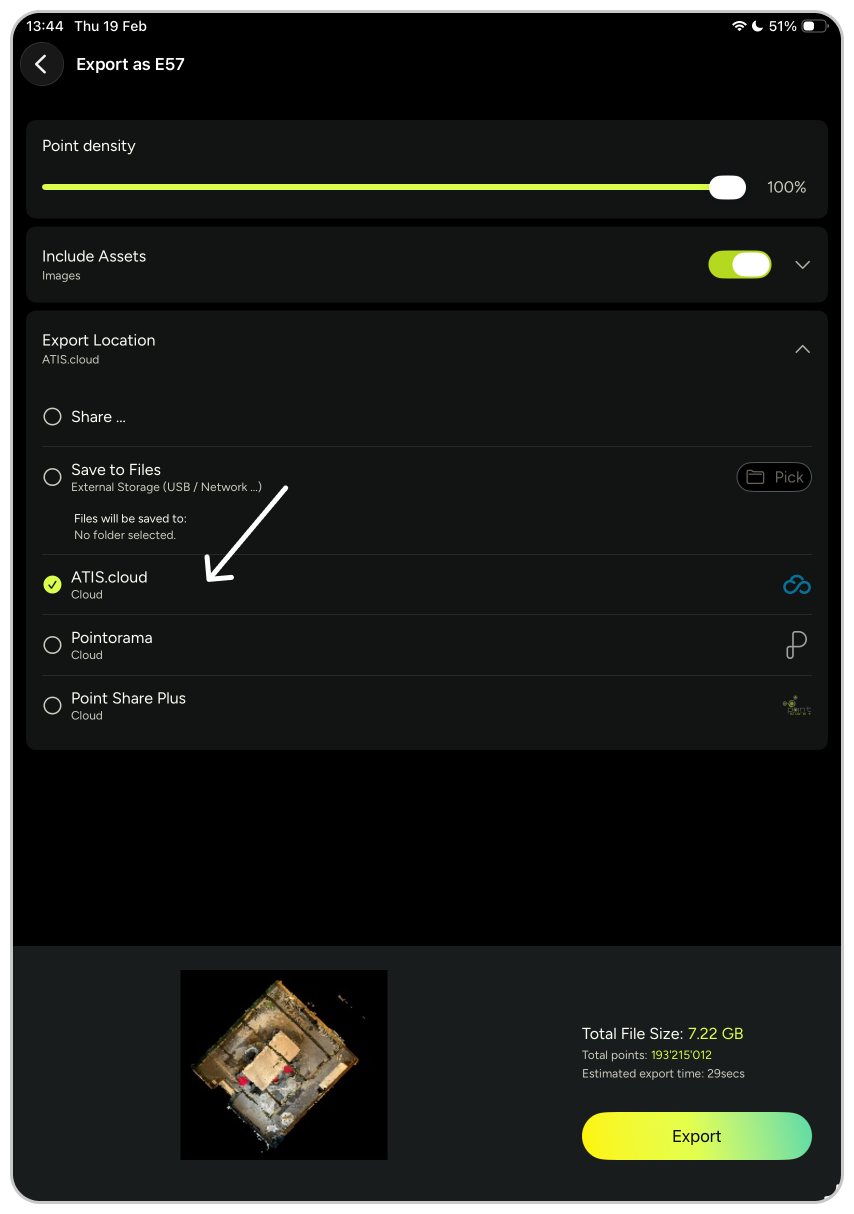
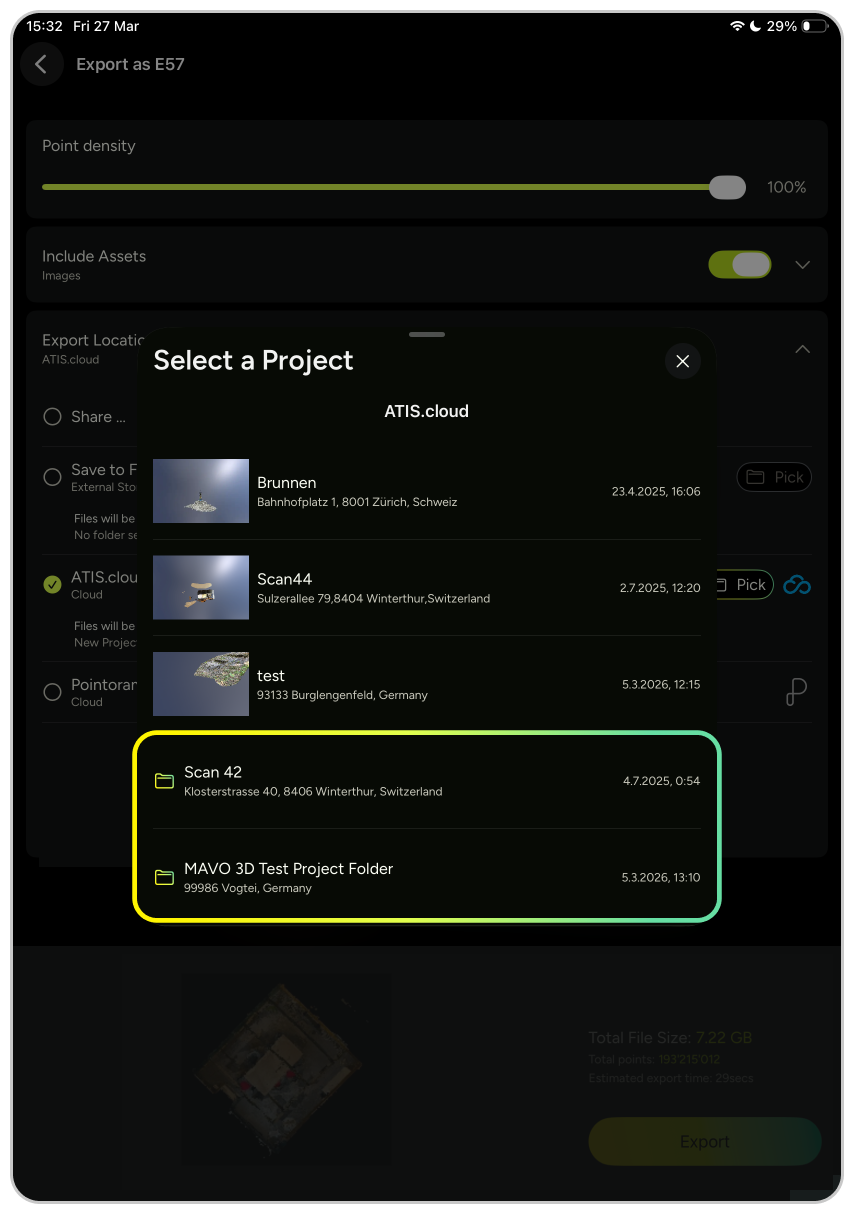
Export your scan as E57 file and select ATIS.cloud as the export location. Pick a project as upload destination in the export configuration screen.
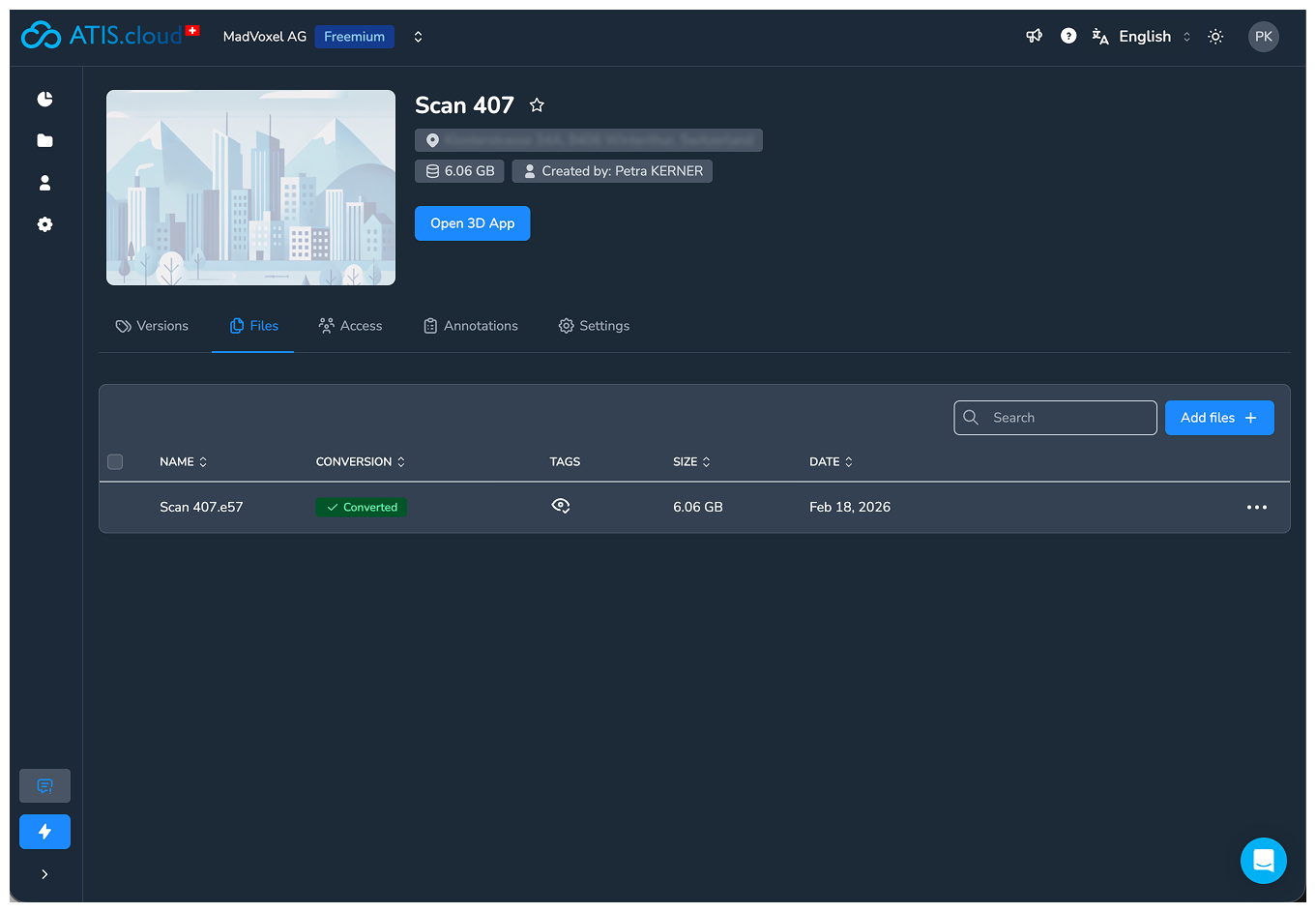
Wait for the upload and processing to complete. The scan will automatically appear in a new project folder on ATIS.cloud. Open the project.
1. Capture the location with MAVO 3D
2. Log in to your ATIS.cloud account or create new
3. Upload your scan as E57 export to ATIS.cloud
4. Open your project on ATIS.cloud
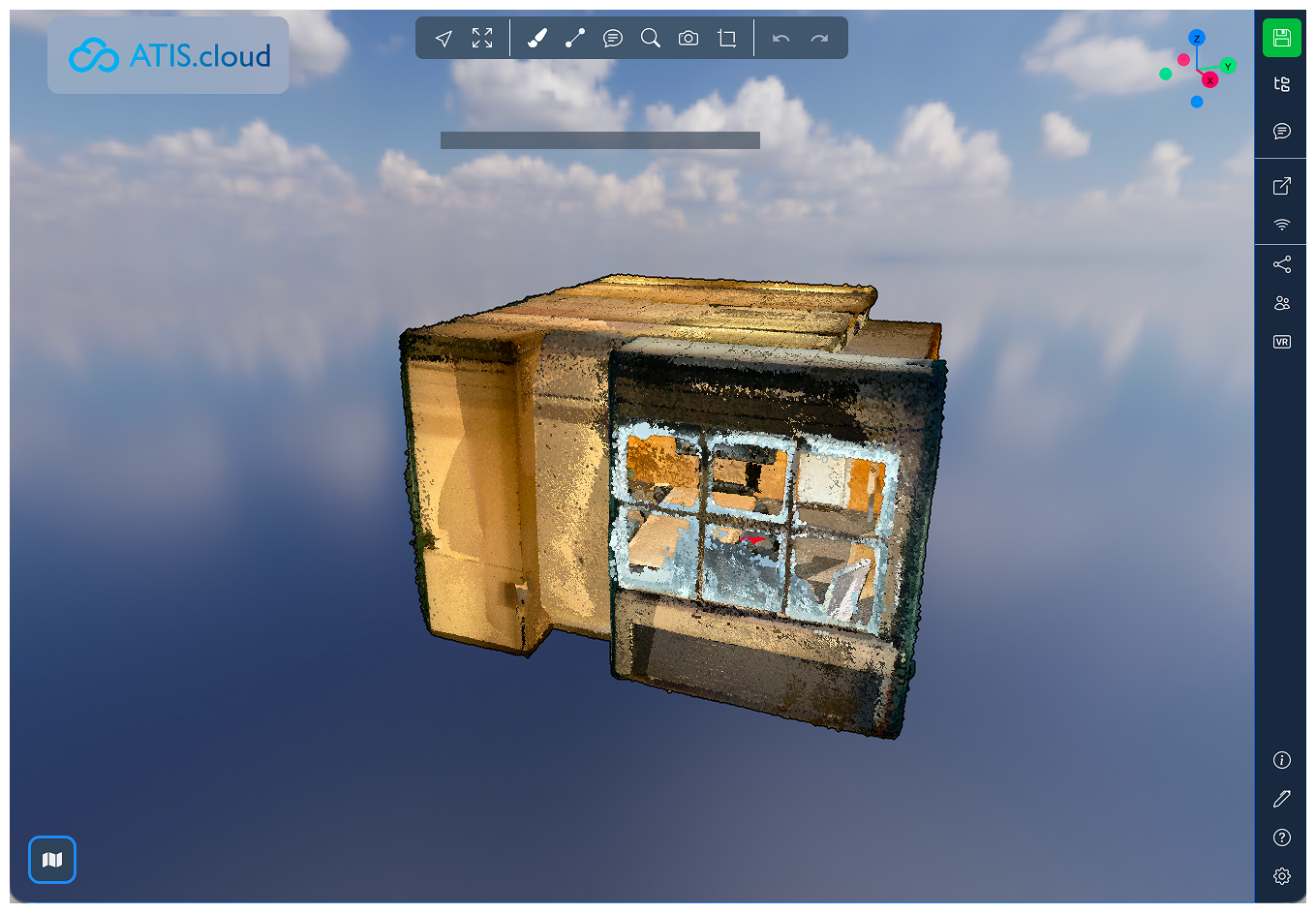
Continue in ATIS.cloud
For this example, we prepared a refurbishment proposal for a client, clipping out existing furniture and staging a sofa and coffee table. For more tools and workflow options, visit ATIS.cloud’s Help Center.
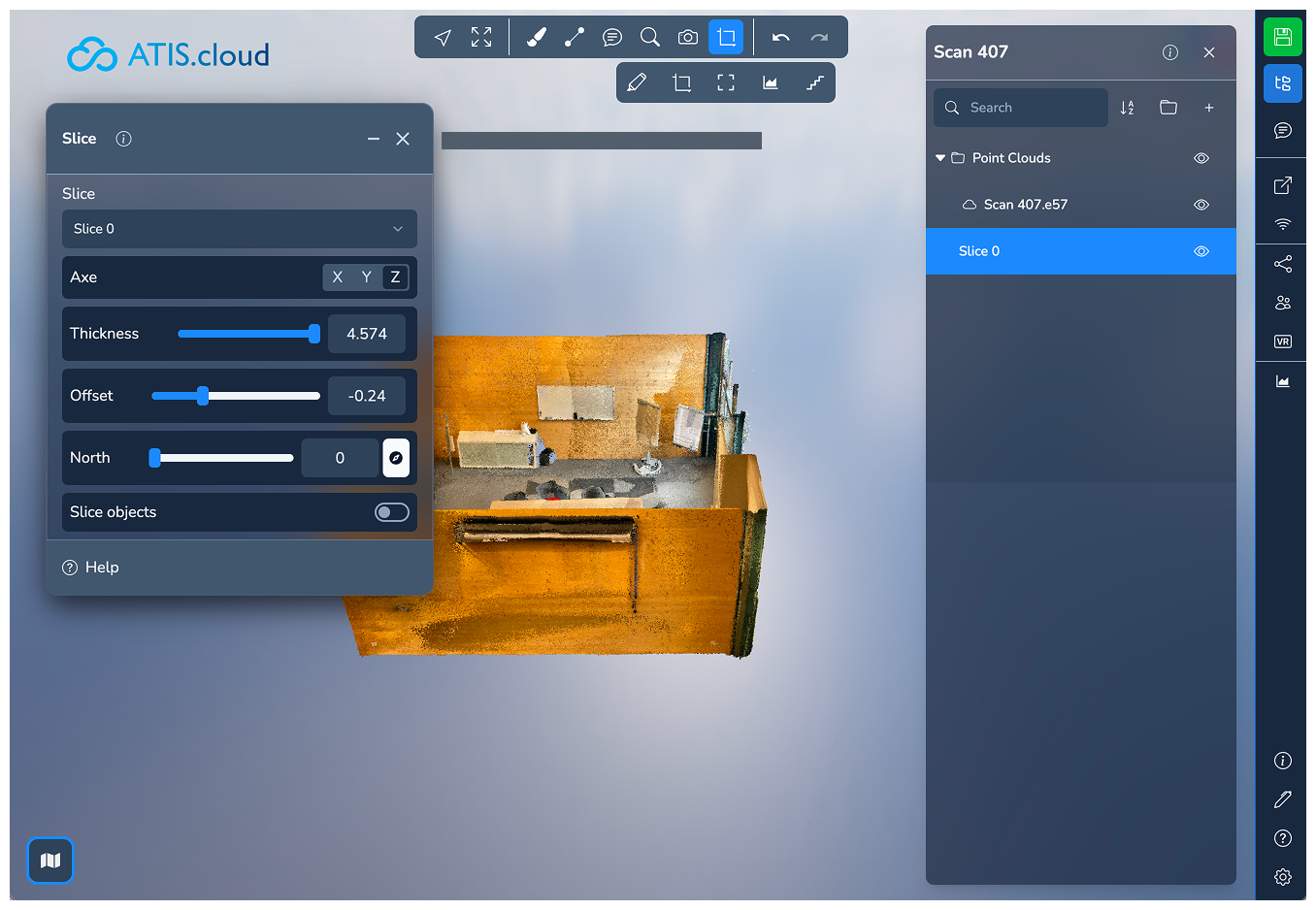
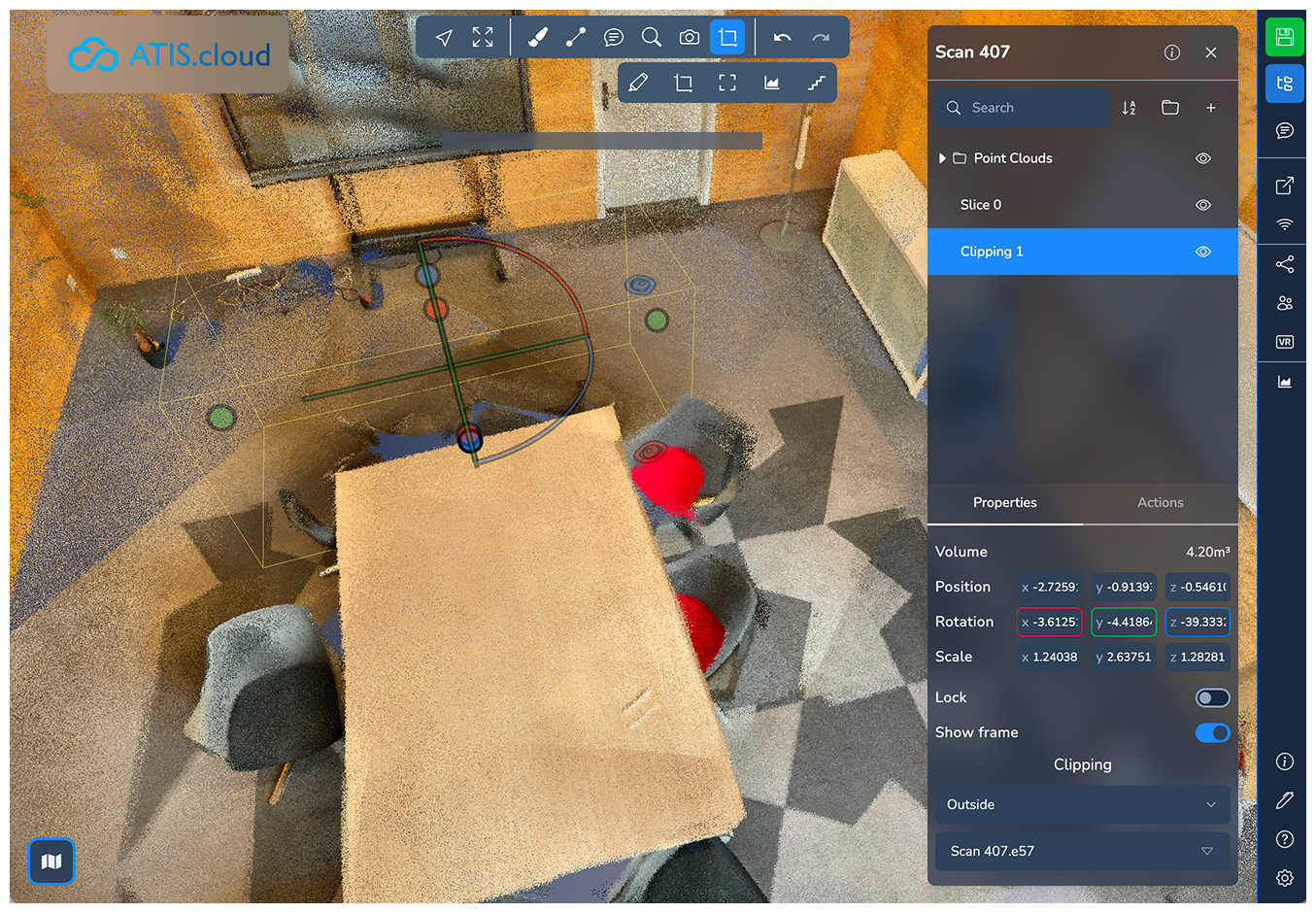
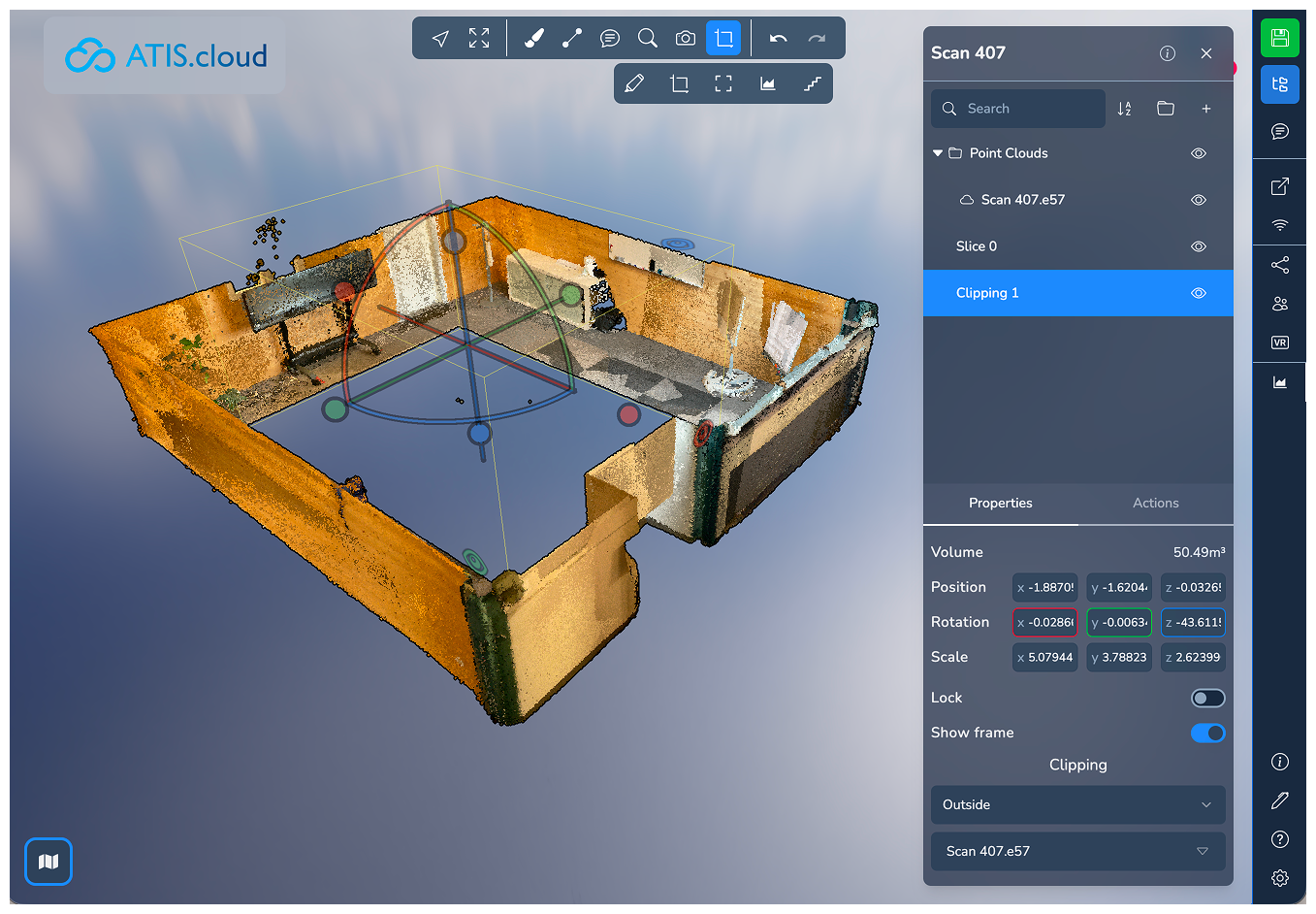
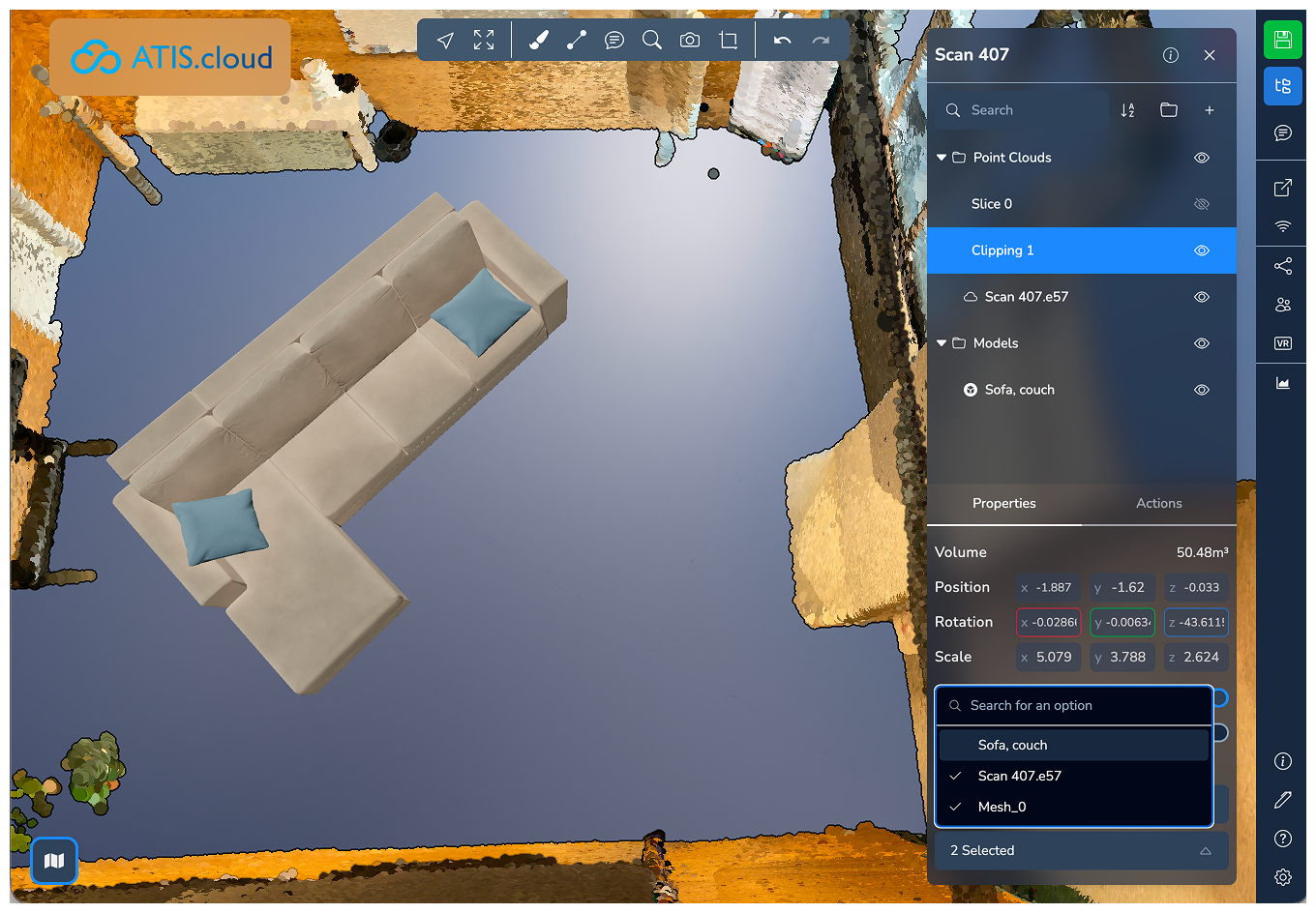
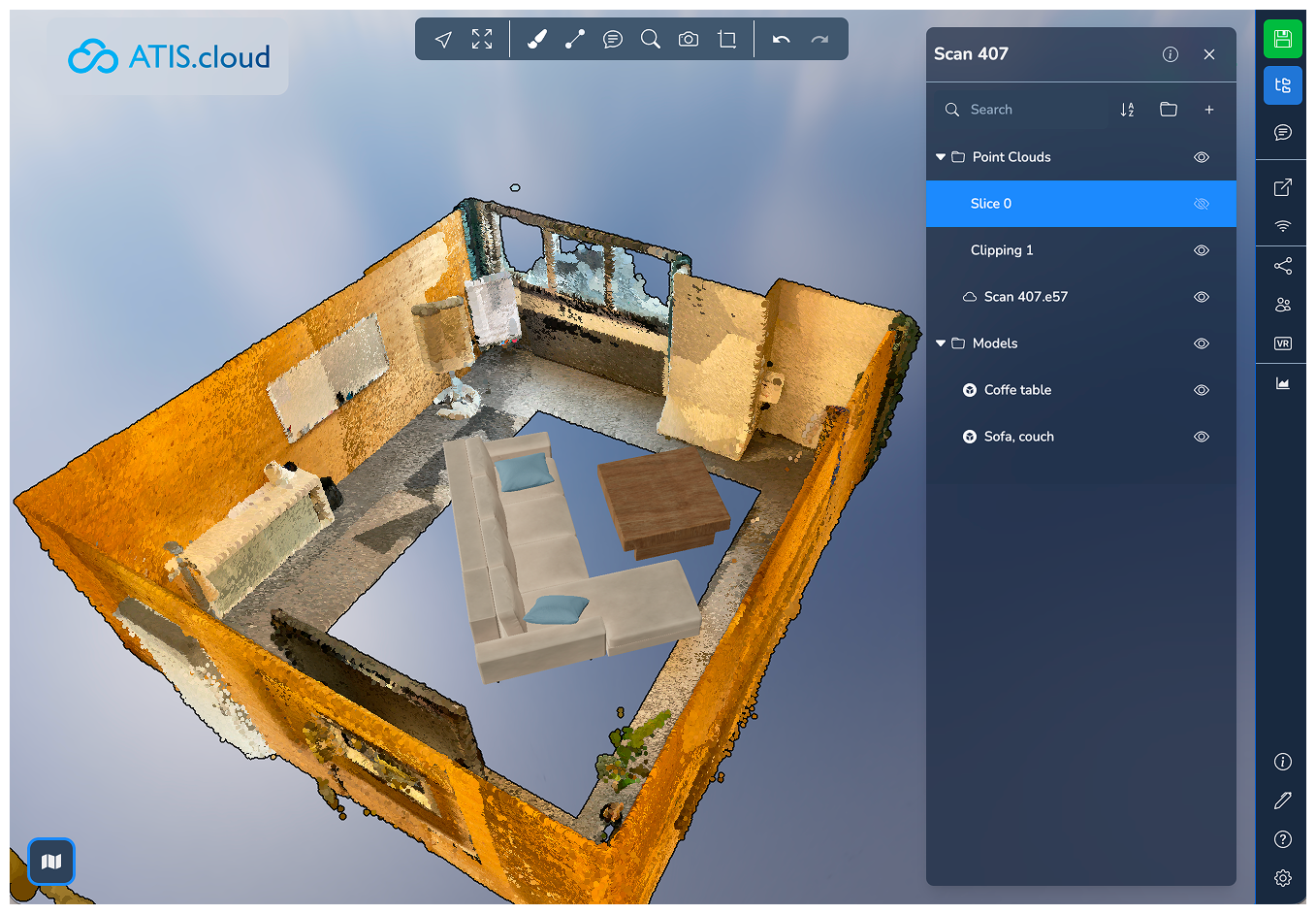
Apply a slice plane to remove the ceiling, then use clip-out boxes to hide existing furniture.
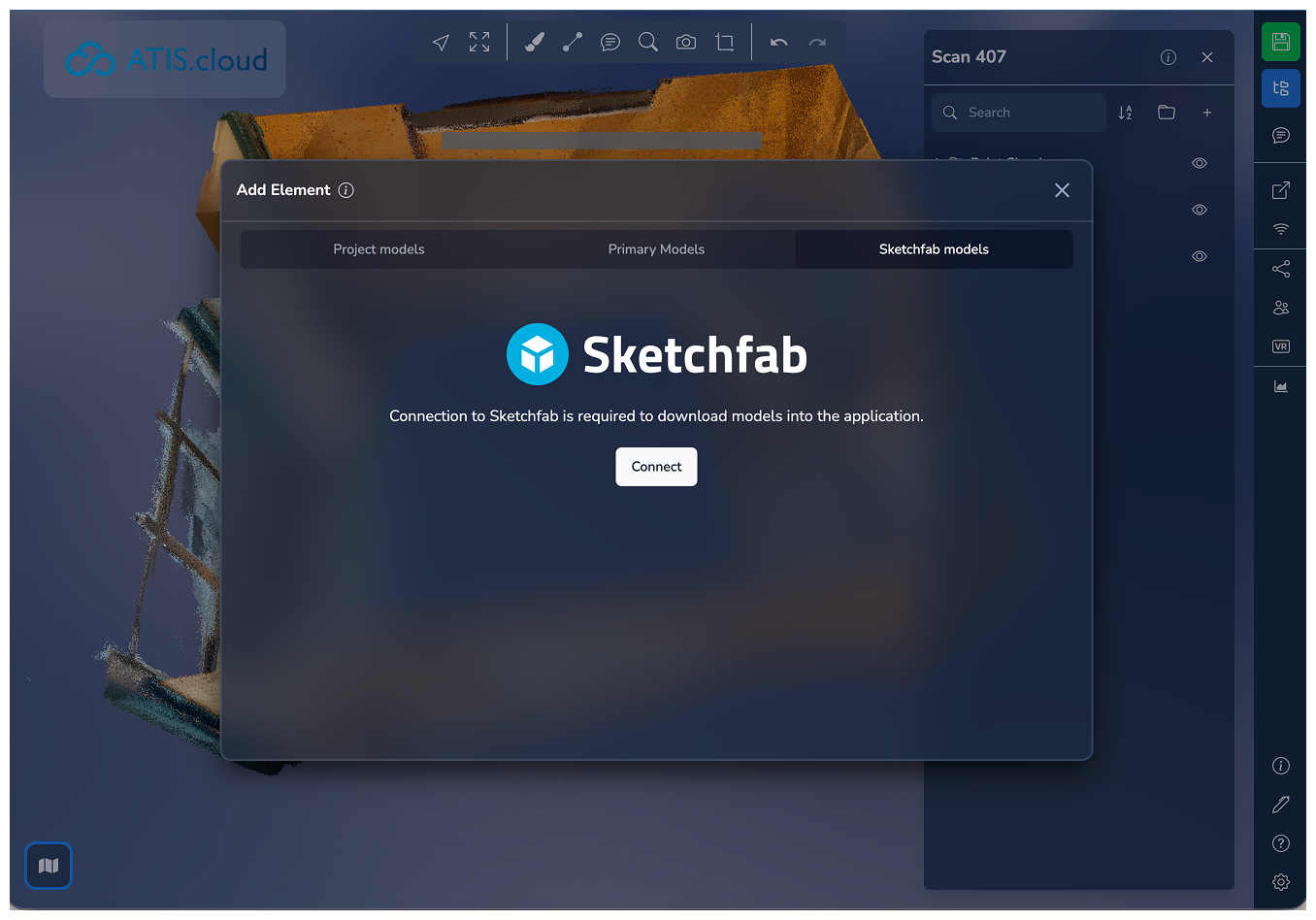
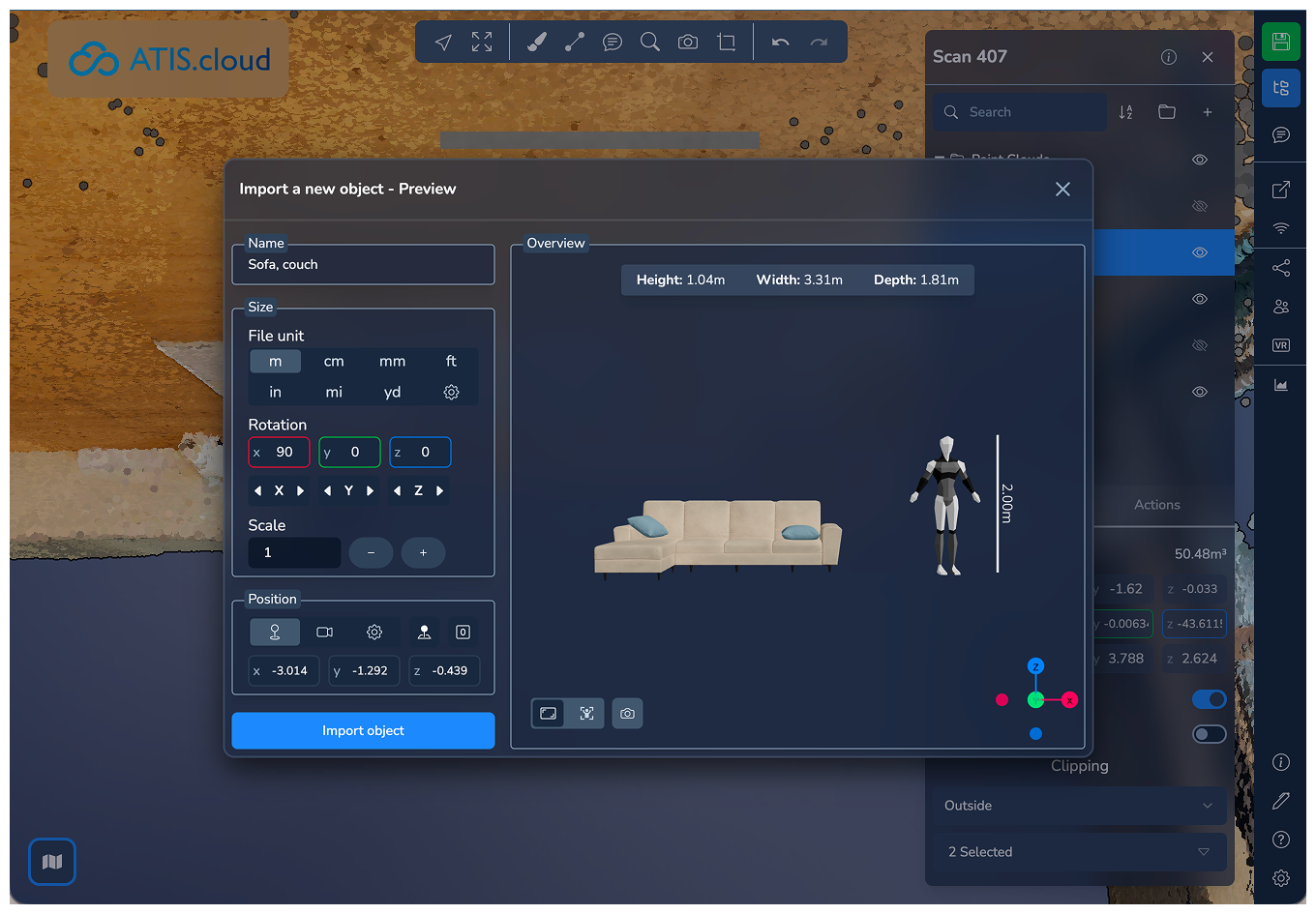
Add new furniture from Sketchfab or your own library. We placed a sofa and coffee table for the first refurbishment proposal round, check out the ATIS.cloud Sketchfab integration guide for setup details. Make sure to deselect the model to exclude it from clipping.
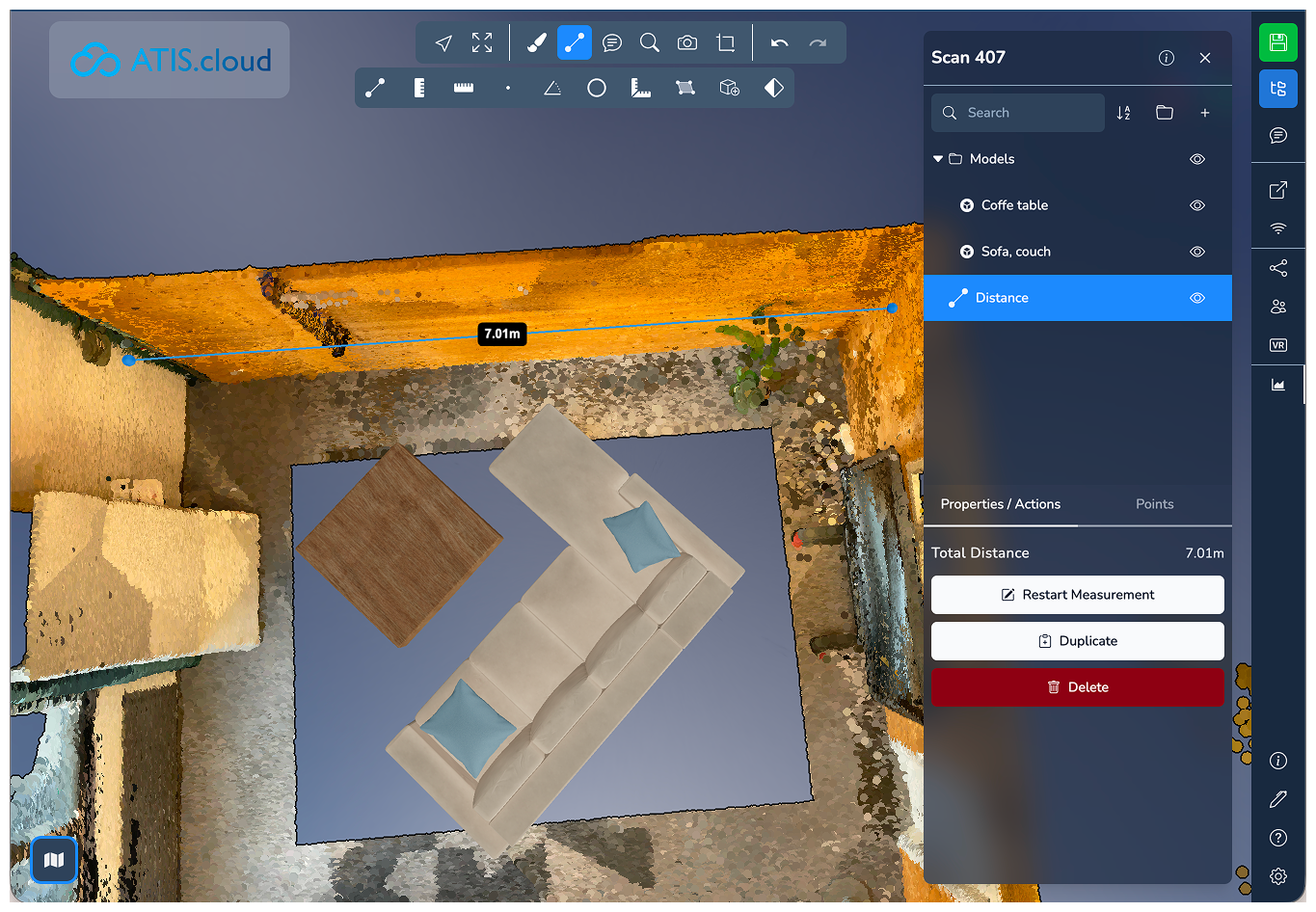
Use the measurement tool to take wall dimensions as a reference for discussions.
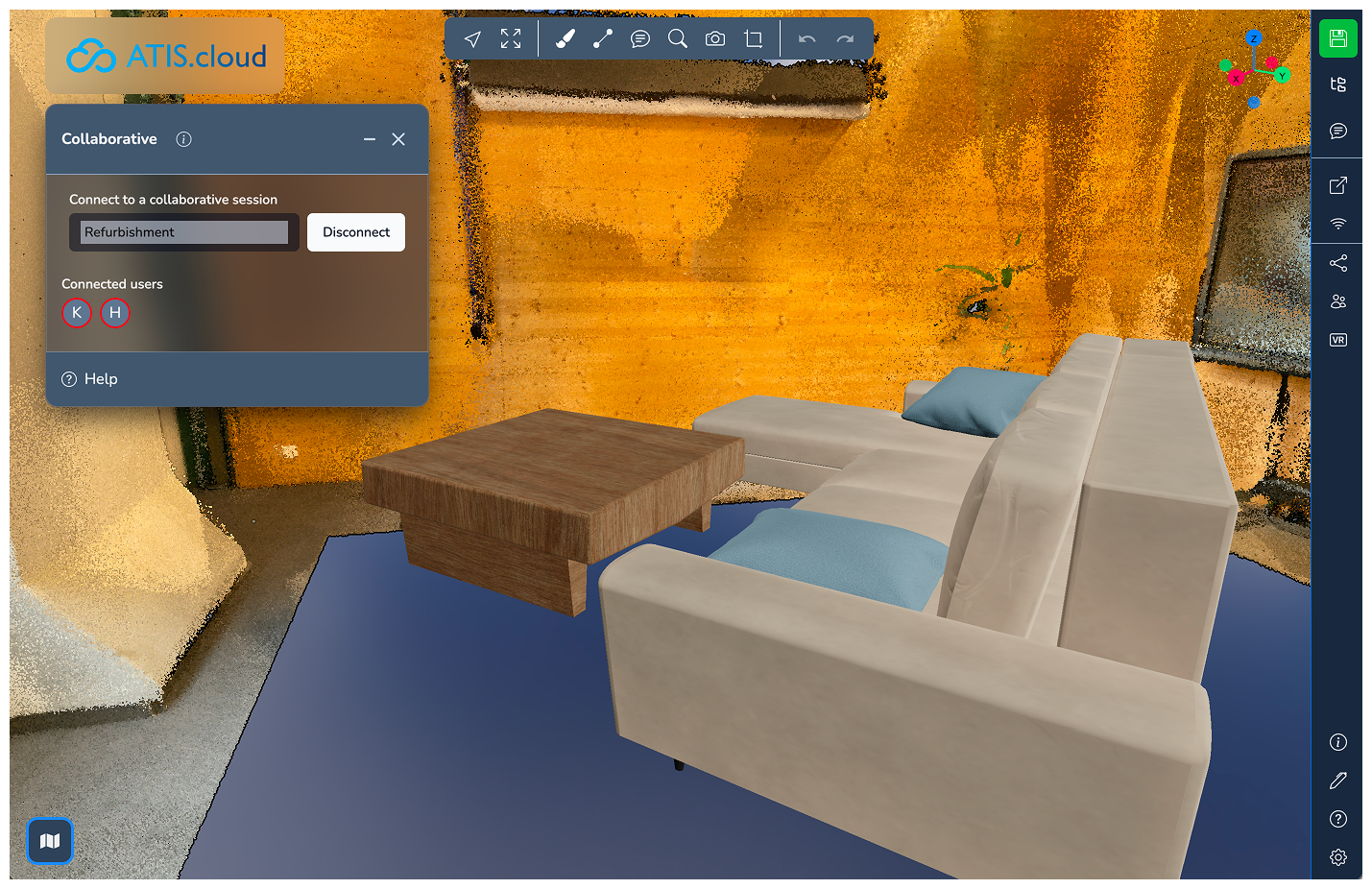
Start a collaborative session with a colleague to review and discuss the proposal together.
5. Prepare the point cloud
Remove ceiling and furniture
6. Add new furniture
3D models from Sketchfab or your own library
7. Take wall measurement
8. Start collaborative session with co-worker
Get started with MAVO 3D
Download MAVO 3D on the App Store and capture your first project.
Try ATIS.cloud
Register for a free account and explore the integration today. View pricing options.
About ATIS.cloud
CYDIS develops enterprise-grade platforms for geospatial data, point cloud processing, and BIM workflows with 10 years of expertise. CYDIS’s engineering culture prioritizes precision, performance, and scalability for demanding geospatial applications.
Their flagship platform ATIS.cloud is a mature enterprise platform for reality capture data management, point cloud processing, and collaborative geospatial workflows. ATIS.cloud embodies CYDIS vision of reliable, scalable, and sustainable software.
ATIS.cloud is made for:
- Laser scan and photogrammetry data management
- Web-based point cloud visualization
- Enterprise-grade security and availability
FAQ
What is the MAVO 3D & ATIS.cloud integration?
MAVO 3D connects directly to ATIS.cloud, allowing you to export and upload your 3D point cloud scans to the cloud in one step — no manual processes, no workarounds.
Do I need an ATIS.cloud account?
Yes. You can
create a free account directly from the MAVO 3D app or on the ATIS.cloud website.
How do I connect MAVO 3D to ATIS.cloud?
Open MAVO 3D, go to Settings → “Accounts and Clouds”, and log in with your ATIS.cloud credentials.
Which export format is used for cloud upload?
E57 is the supported format for direct upload to ATIS.cloud.
Can I still store scans locally?
Yes. Local storage remains fully available. Cloud upload is always optional.
Is the integration free?
Yes. The integration is free within MAVO 3D. For export of E57 file format, a Professional license is required. ATIS.cloud has its own
storage pricing.
Is my data secure?
All transfers are encrypted. ATIS.cloud complies with European data protection standards (GDPR).
Should I keep a local backup of my scans?
If you want to reprocess or upsample your scan later, save a MAVOB (MAVO Backup) file locally or to some other file storage online. This preserves all RAW data for future use.
3D Model Credits
“Coffe Table” by Art.blend | licensed under CC BY 4.0 “Sofa, couch” by Eduard | licensed under CC BY 4.0