Scan to Cloud Platforms
May 18, 2026





Get your scans off your device and into a shared, browser-based workspace.
MAVO 3D stores everything locally, your data stays yours. For long-term archiving and full control, we recommend keeping a MAVO Backup (MAVOB) file. It preserves all raw captured data, so you can always go back and reprocess or upsample your scans later.
Sometimes though, you just need to share a project quickly or collaborate with a client. Cloud platforms are the most convenient way to get your scans into a shareable, browser-based environment fast.
Just keep in mind that your data is then subject to the privacy policies and subscription plans of the respective provider. If that matters for your project, stick with local files or set up your own on-premise solution -> we can help you to set it up.
Let’s connect MAVO 3D to your cloud platform
Setting up your Nextcloud or ownCloud connection
For security reasons, Nextcloud and ownCloud do not allow external apps to connect using your regular account password. Instead, you create a dedicated app password. This one-time credential gives MAVO 3D secure access without exposing your main login.
WebDAV connections work differently and accept your regular credentials directly, so no extra setup is needed there.
How to create your app password for MAVO 3D
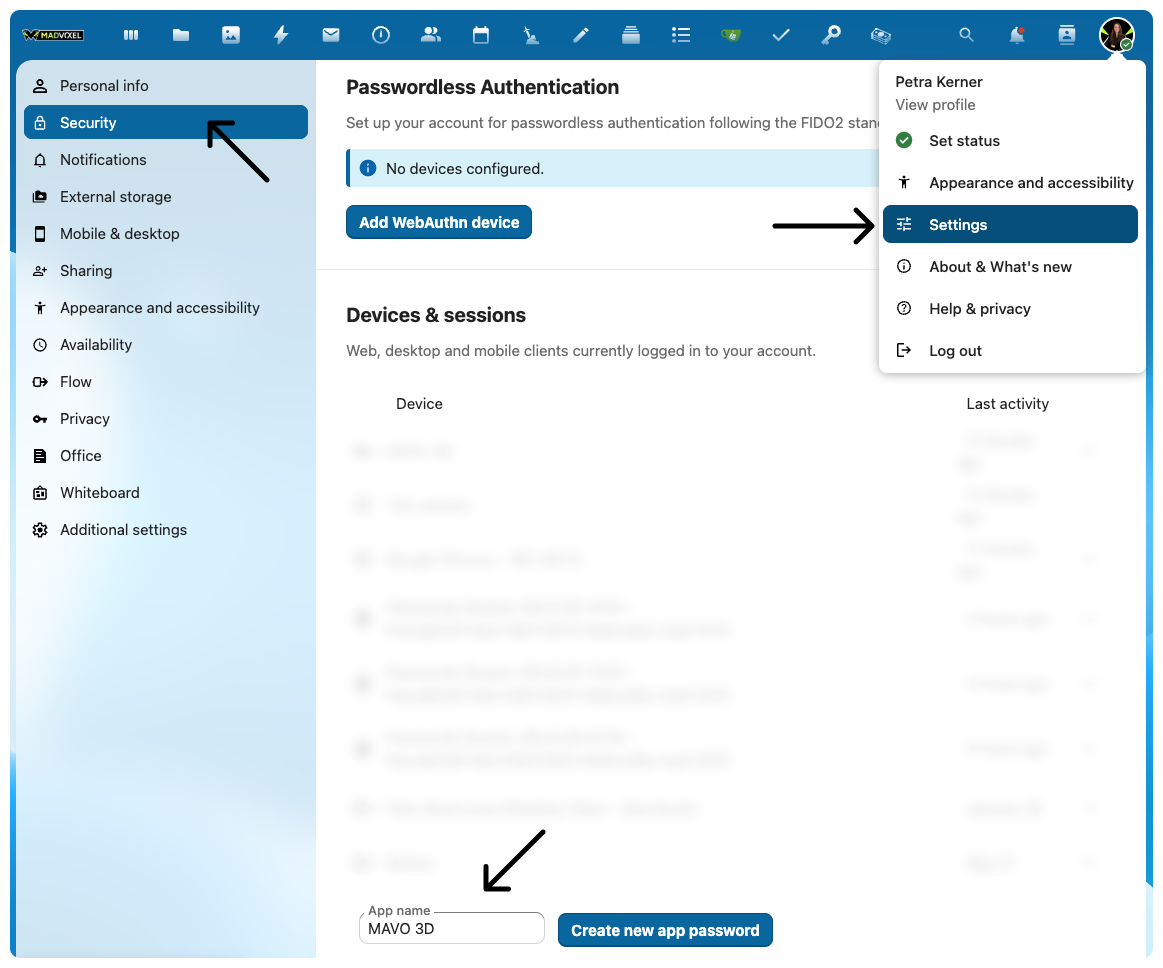
- Open your Nextcloud or ownCloud account and go to Settings → Security
- Scroll down to Devices & sessions
- Enter MAVO 3D as the app name and tap Create new app password
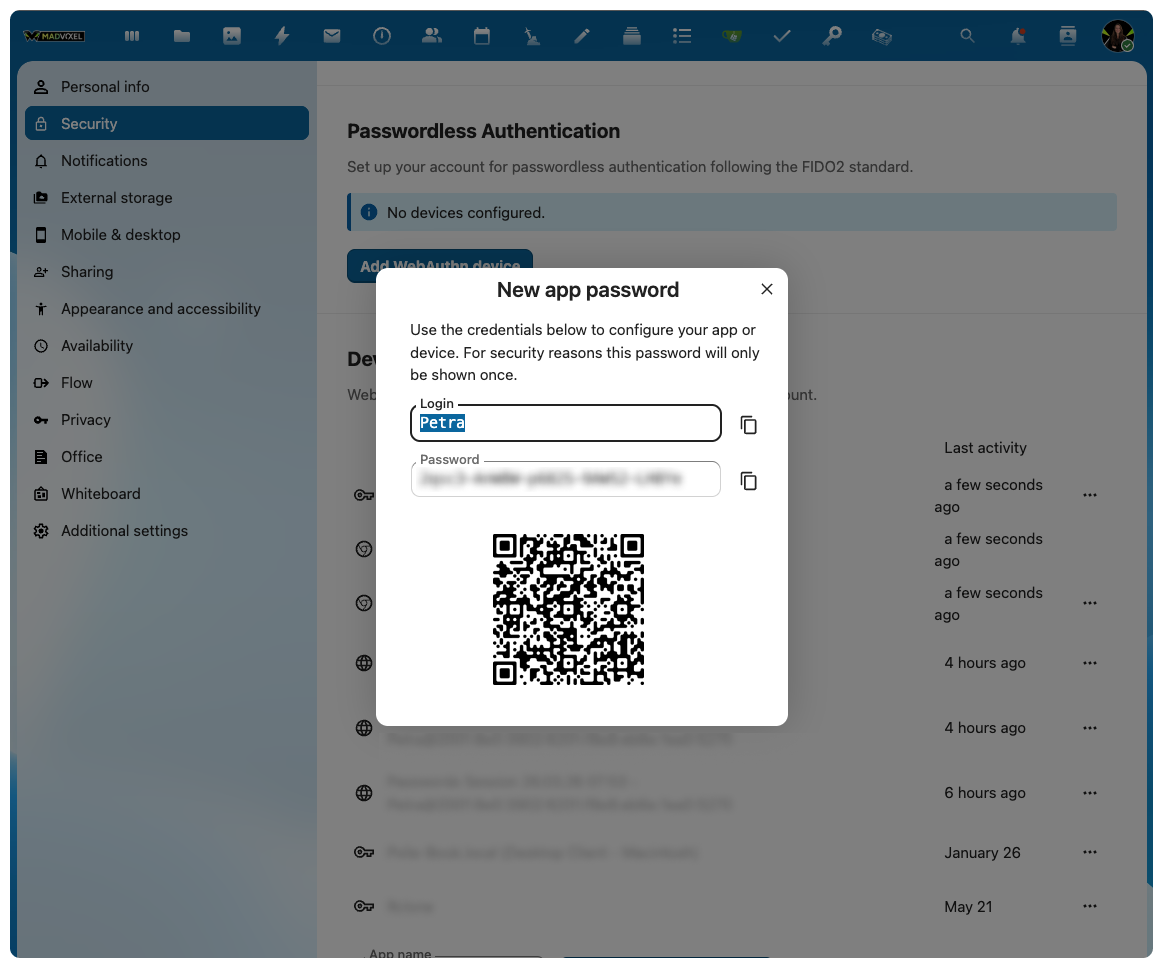
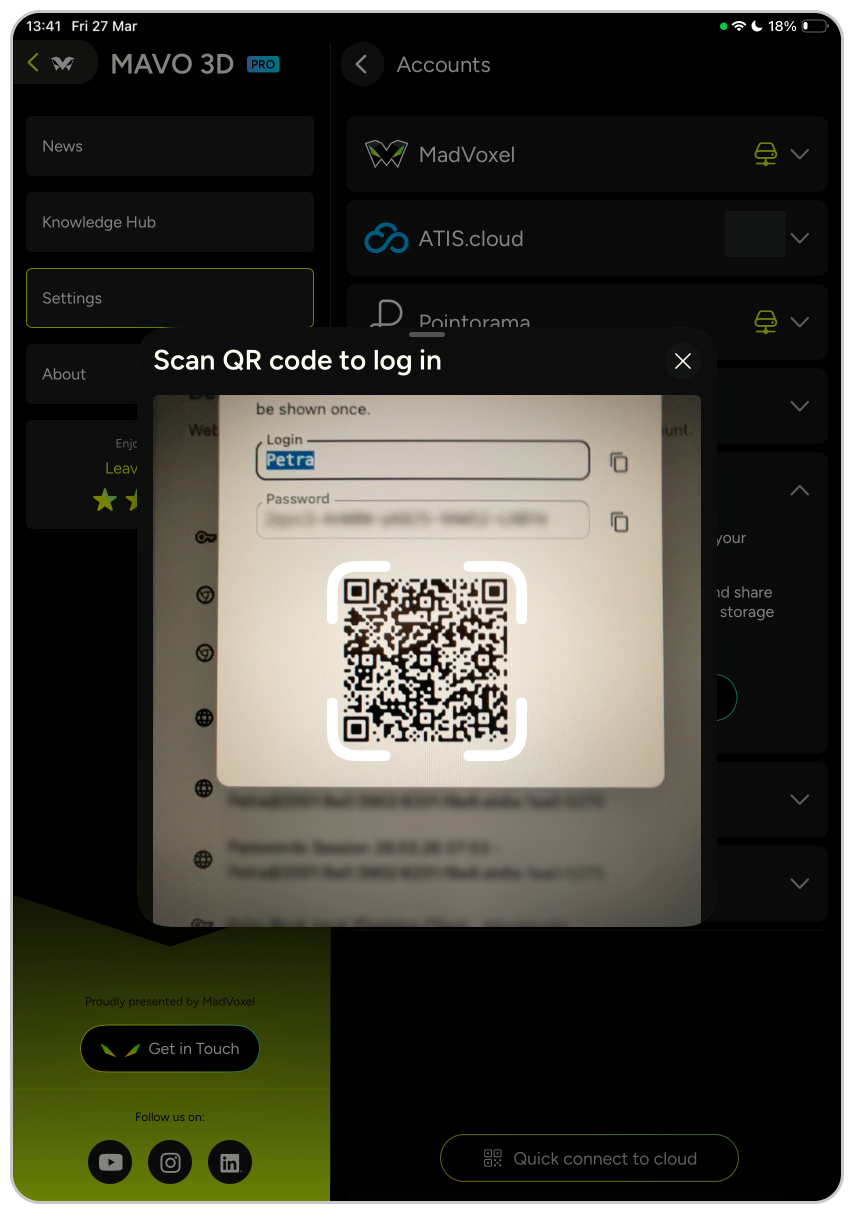
- Copy your login and password, or scan the QR code. These credentials will only be shown once.
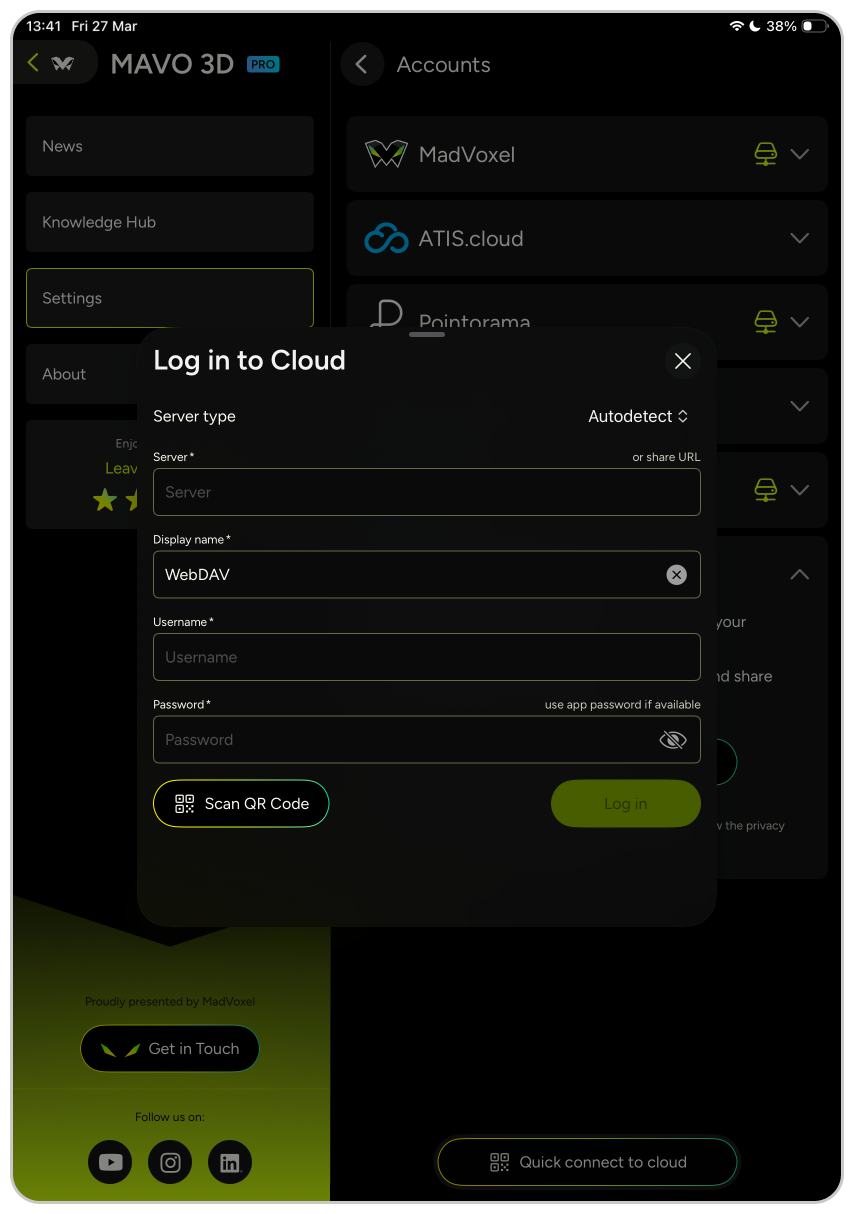
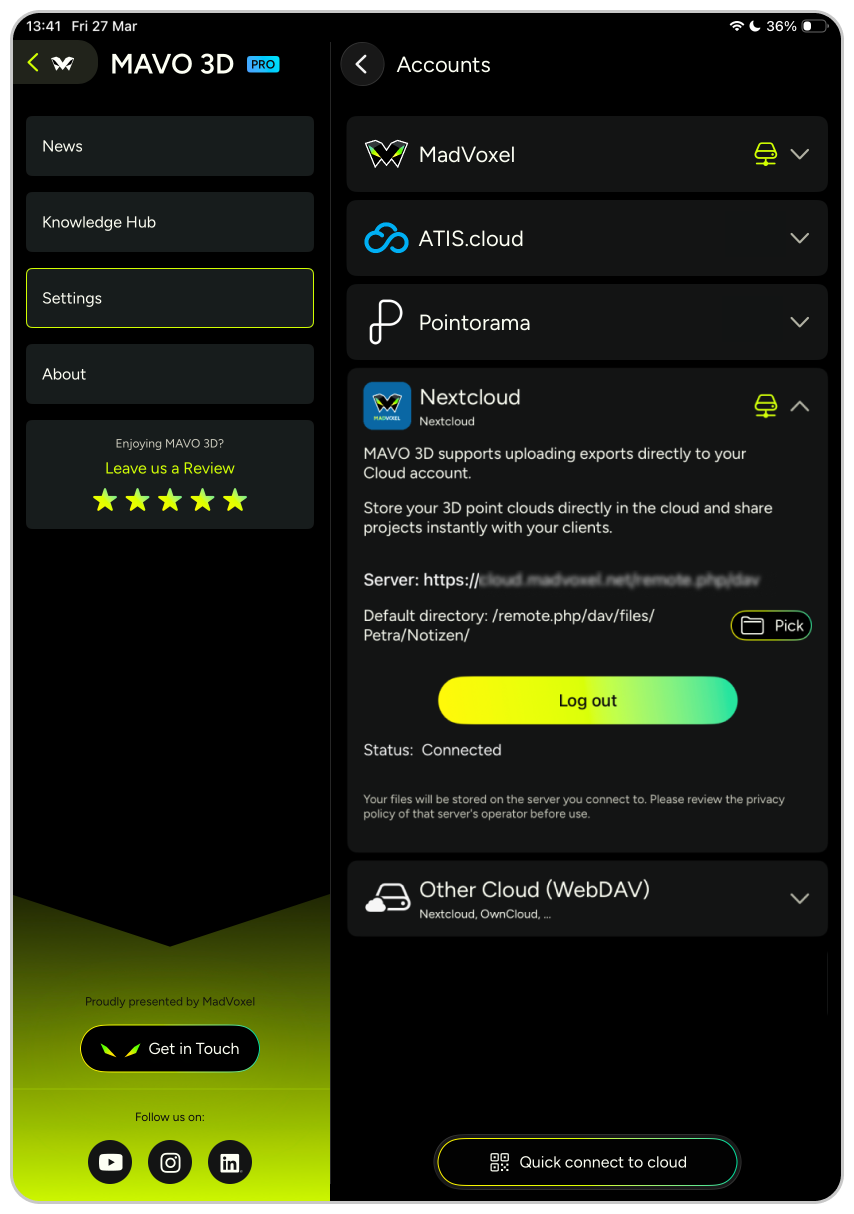
- Open MAVO 3D and enter them to complete the connection
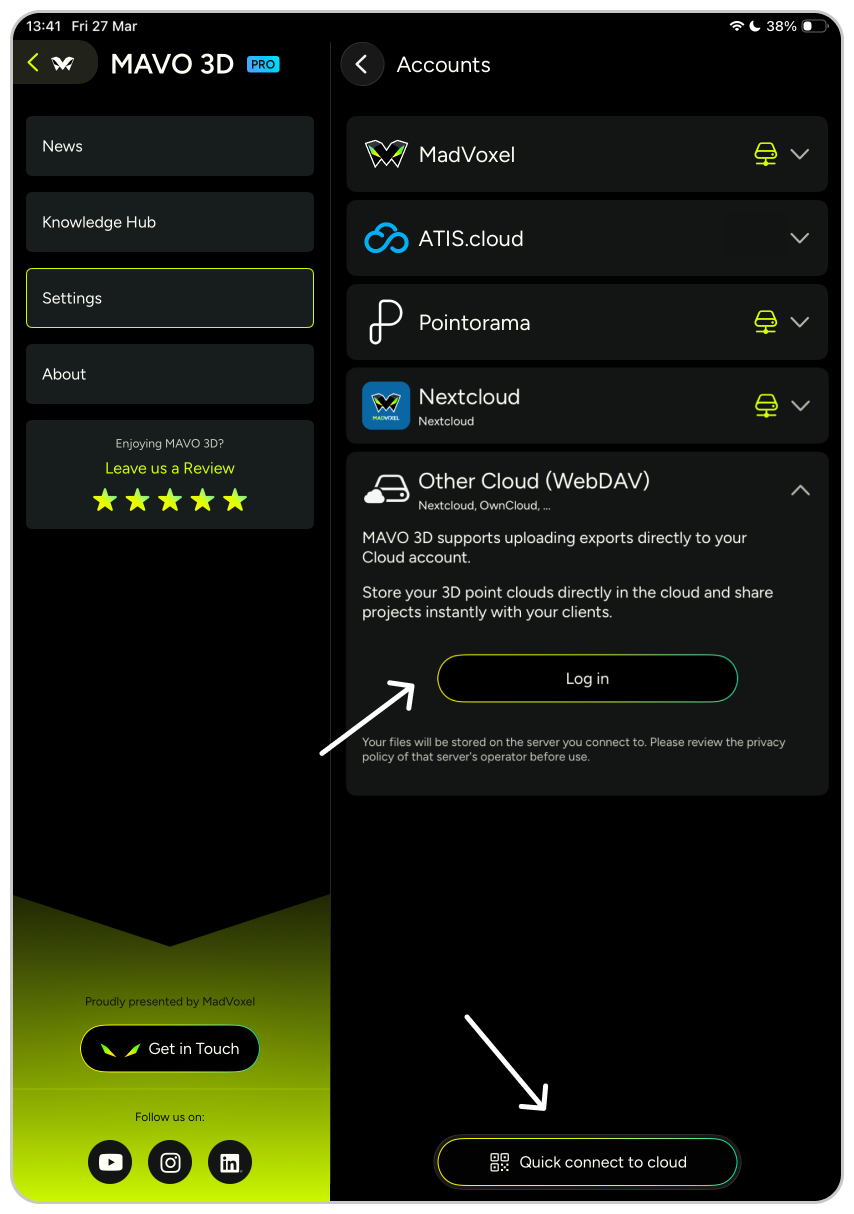
Other option: Connect via direct link to public folder
This option is quite handy if you don’t want to give an external app, such as MAVO 3D, full access to your whole online storage, use direct links.
- Open your public Nextcloud folder
- Copy the sharing link
- Paste it into the Server input field
- Optional: If you created a password for additional security, enter it as well
Default upload folder destination
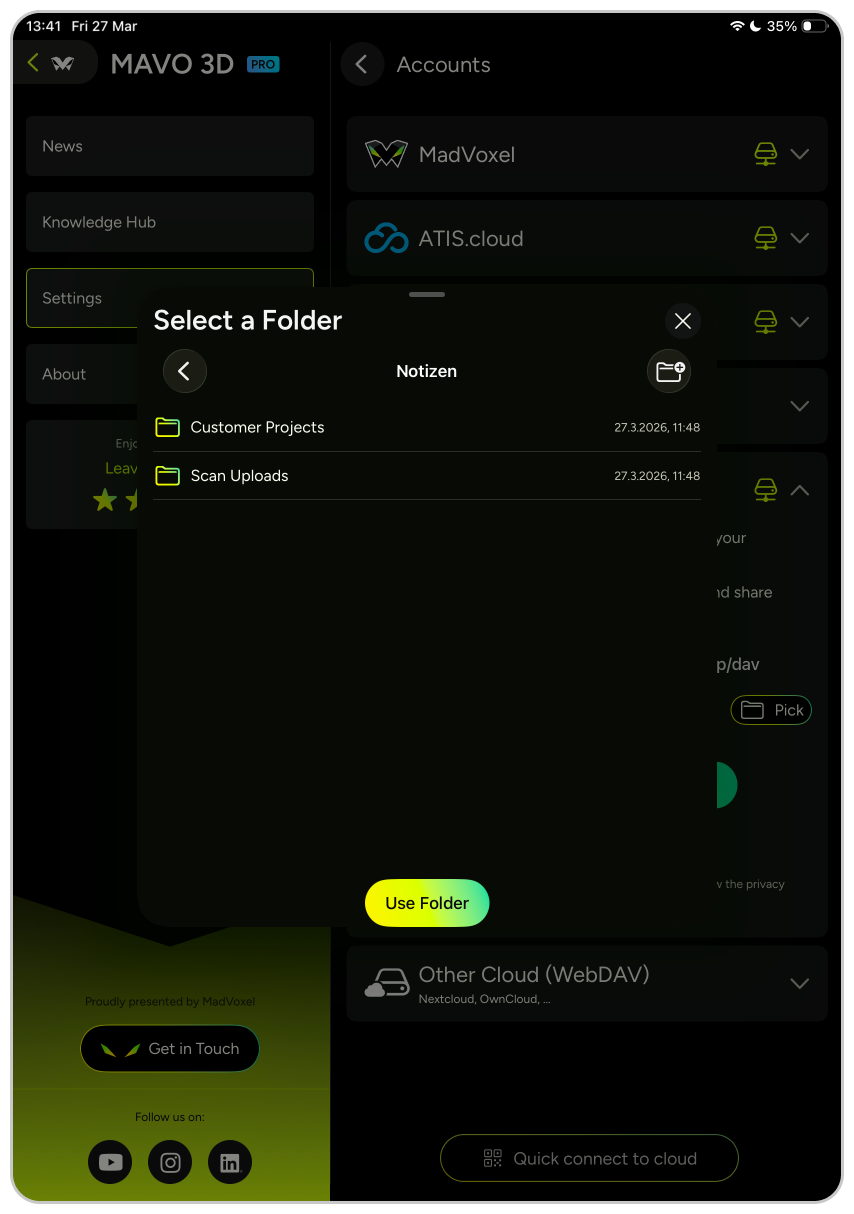
Set your preferred default upload destination once in the MAVO 3D settings. Every export will land there automatically. If needed, you can always override the default folder directly in the export sheet before uploading.
For ATIS.cloud users
ATIS.cloud organises your work by project. Instead of a fixed default folder, MAVO 3D lets you choose the exact project destination each time you export.
You can select your target project directly in the export sheet before uploading, see infos below.
Uploading your scan exports
In MAVO 3D you have two options to upload.
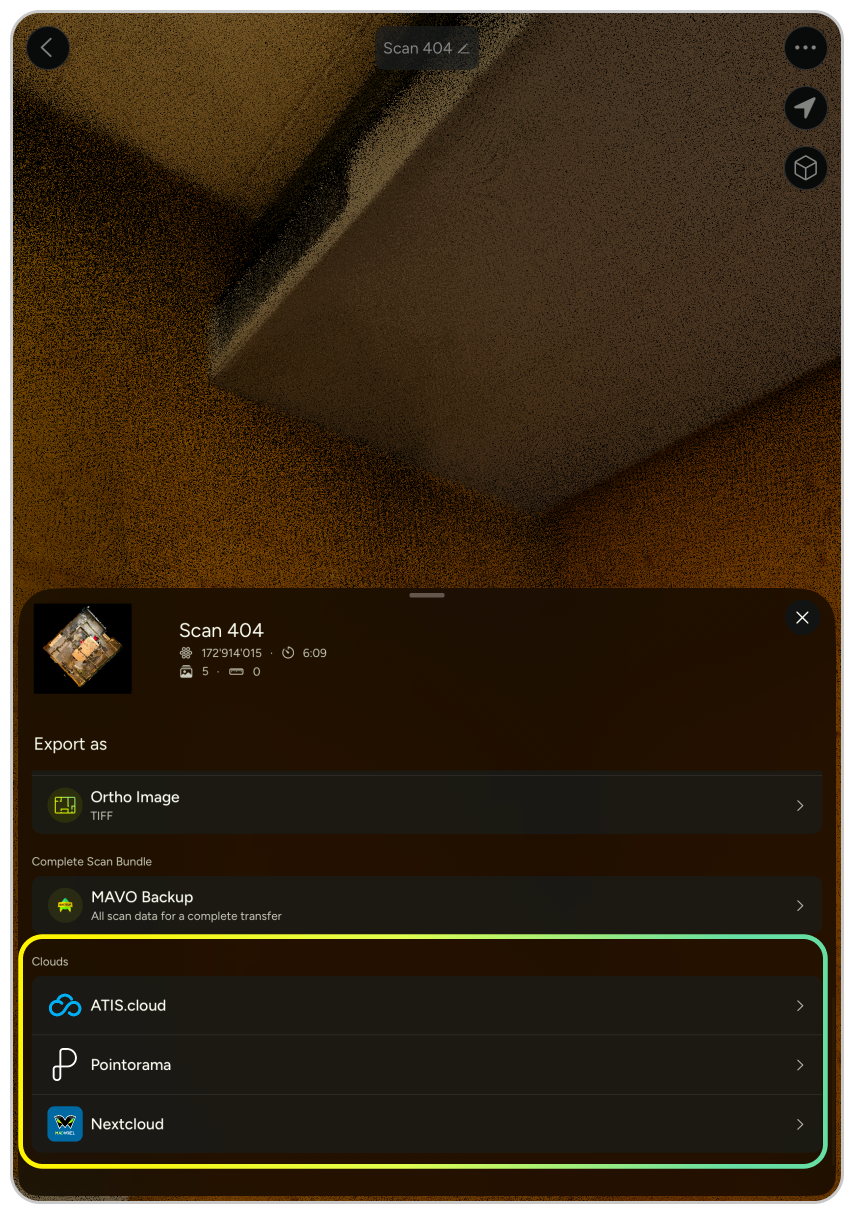
Quick export
The fastest way to get your scans into your workflow. Tap your connected cloud directly from the export menu and MAVO 3D applies the right presets automatically. Currently it is E57 with embedded images, which is the format most platforms work with natively.
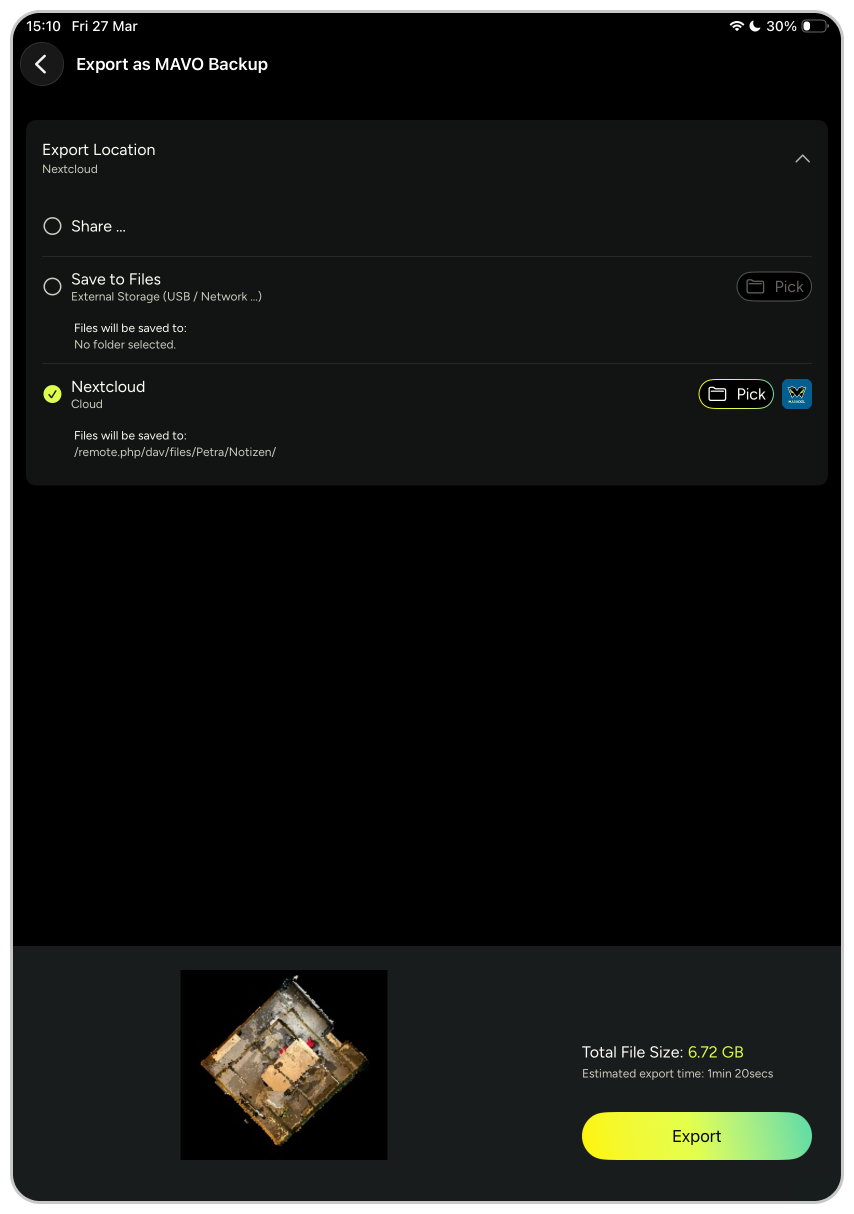
Standard export
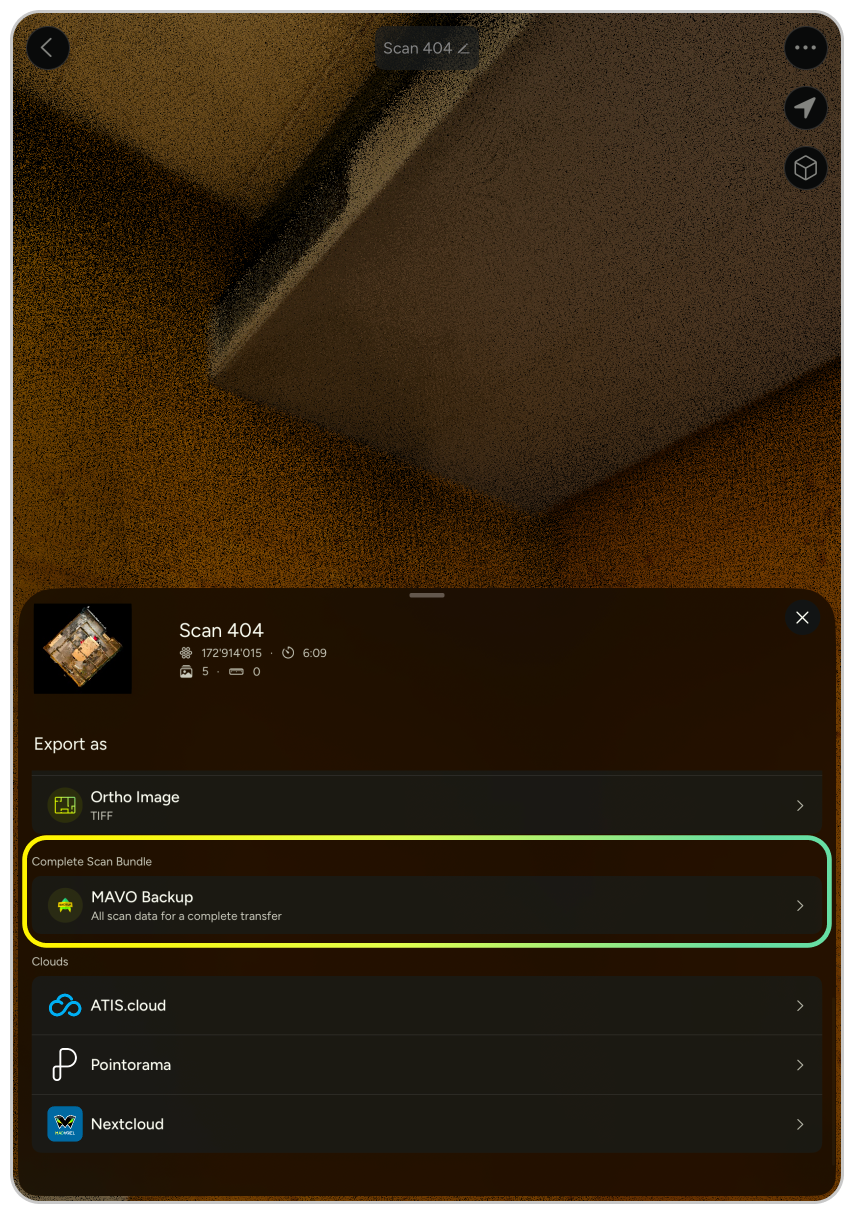
When you want to upload another format such as PLY, LAS, or a MAVO Backup file, use the standard export flow. Select your export format first, then choose your cloud destination from the export configuration screen.
Tip: Uploading MAVO Backup files to the cloud is a great way to free up local storage and keep your device ready for new scans. MAVO Backup format bundles all your raw scan data into a single transferable file. You can use it to move scans to another device, store them safely between sessions, or come back later for post-scan processing and upsampling.
Quick export
Standard export
For ATIS.cloud
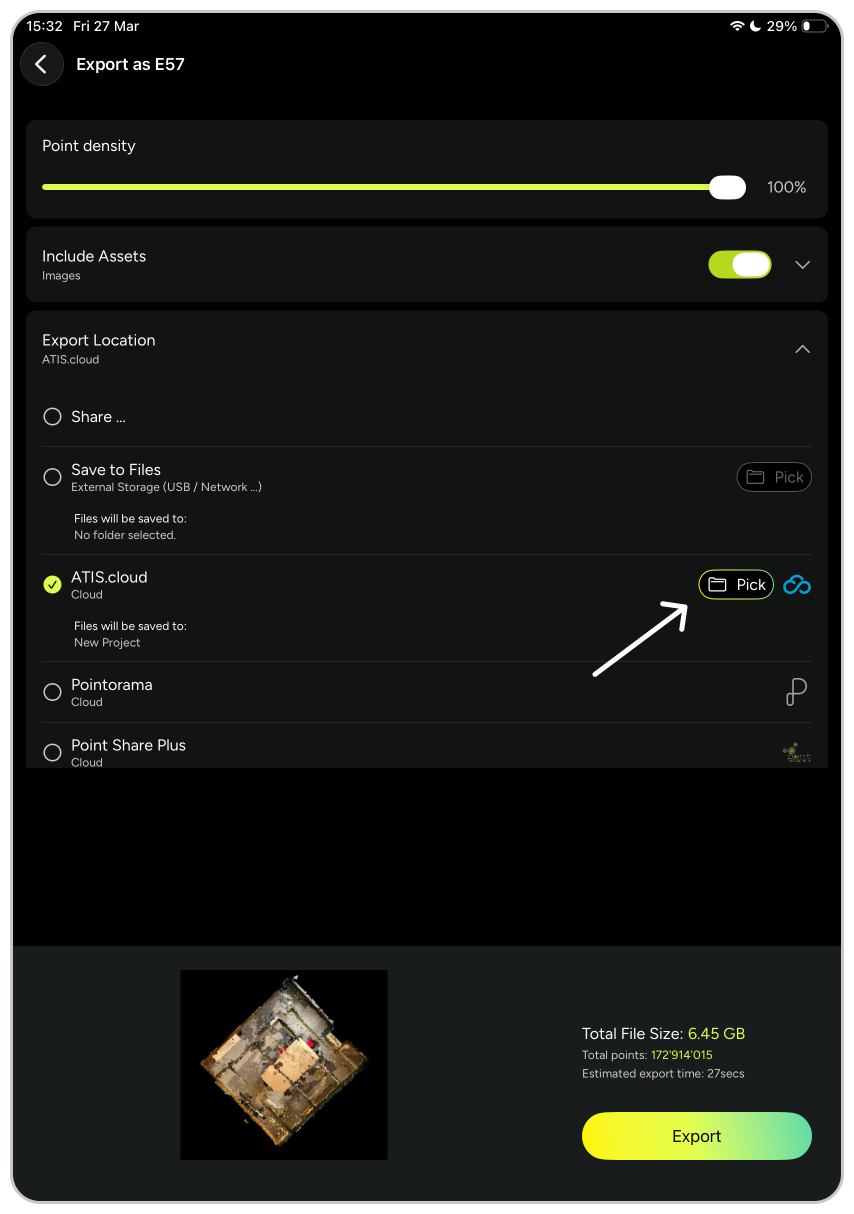
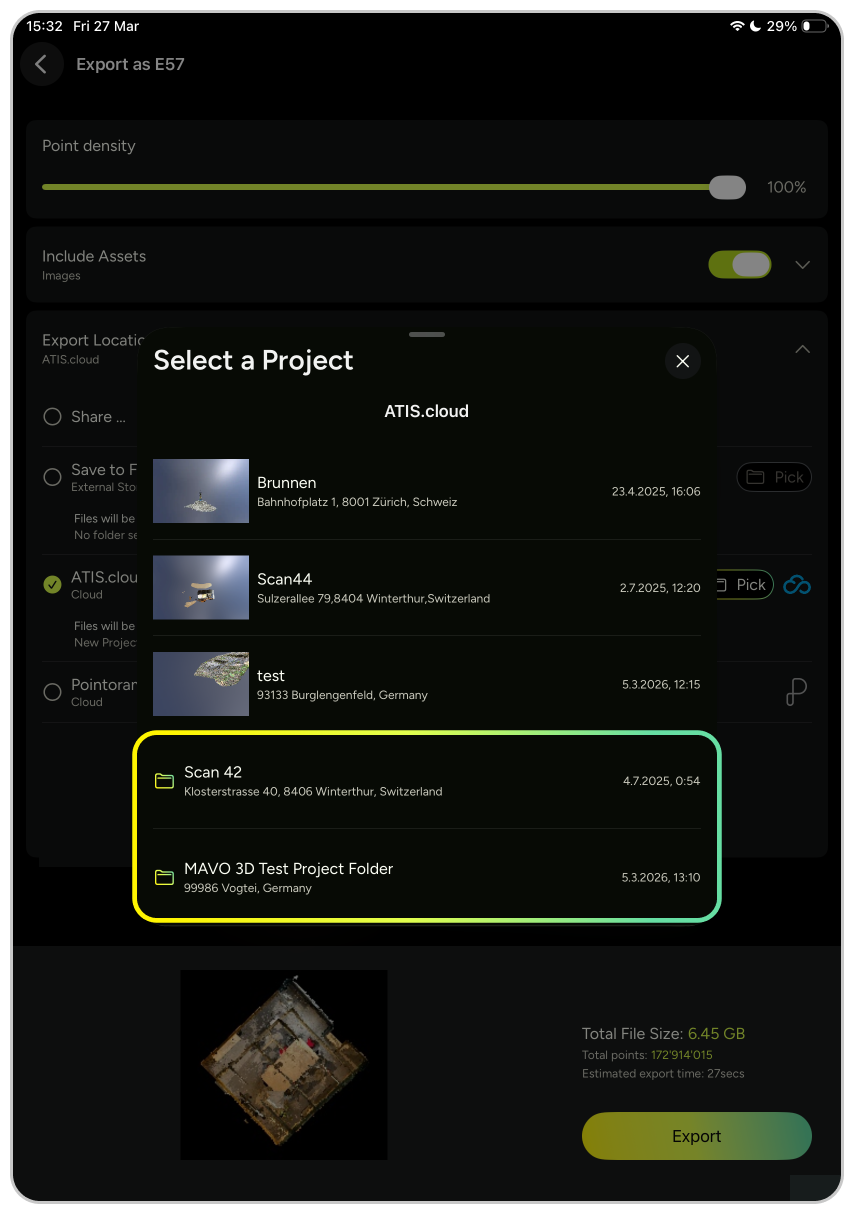
ATIS.cloud
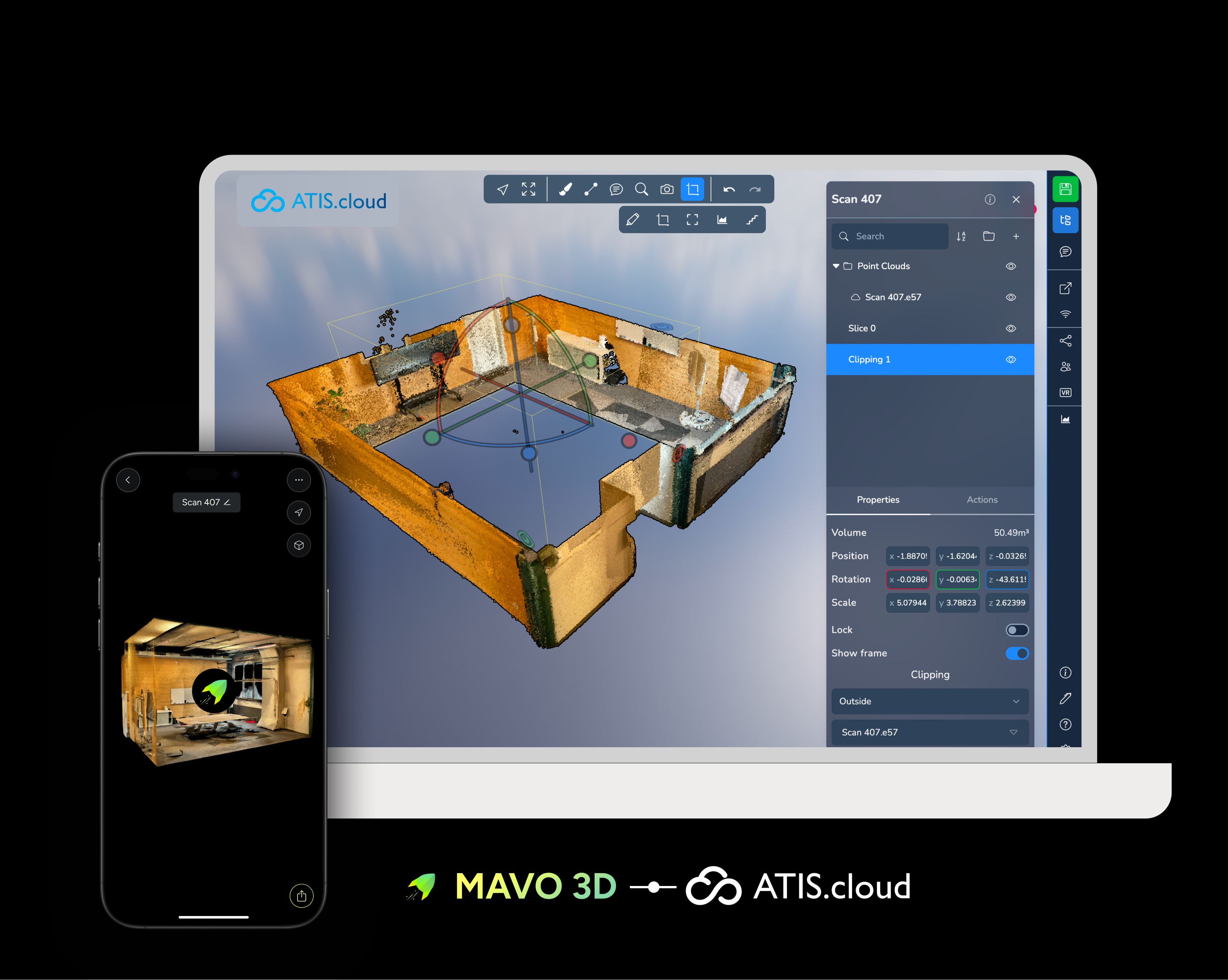
From scan to collaborative 3D workspace
Upload your MAVO 3D scans directly to ATIS.cloud and step into a fully browser-based 3D environment.
Clip away clutter, stage furniture from Sketchfab, take wall measurements, and invite colleagues into a live collaborative session, all from a single project view.
A great fit for refurbishment proposals, spatial planning, and client presentations.
→ Learn how to upload and work with scans in ATIS.cloud
Point Share Plus
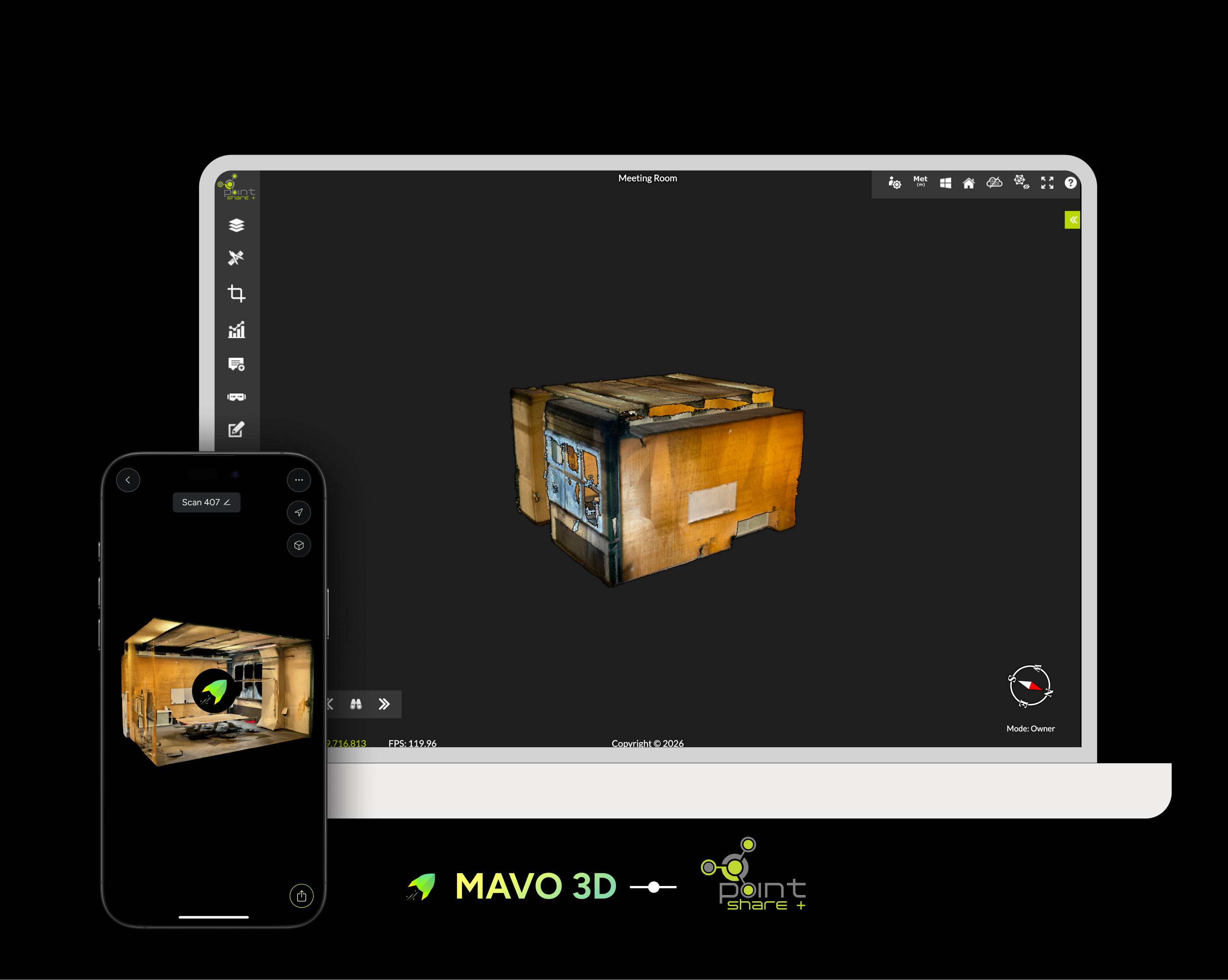
Point Share Plus (PSP) is a specialized point cloud hosting and viewing platform, built for surveyors, engineers and construction teams. MAVO 3D for efficient as-built documentation, Point Share Plus for storing, viewing and easy sharing in the cloud.
Upload your MAVO 3D scans directly to Point Share Plus.
PSP supports a wide variety of point cloud and 3D model formats and MAVO 3D users can access an exclusive PSP plan available, when connecting from inside the app. It includes a 14-day trial, and you can upgrade to any other PSP plan as your needs grow.
→ Learn how to upload and share scans in Point Share Plus
Hetzner
If you don’t want your project data handed over to hyperscalers like AWS, Azure or Google, have a look at Hetzner.
Hetzner is one of the largest data center operators in Europe. It runs state-of-the-art data center parks in Germany and Finland.
They’re certified in accordance with DIN ISO/IEC 27001:2022, with a strong focus on reliability, security and affordable pricing.
Ready to take off?
Start reality capturing with MAVO 3D for free.